Set up pricing, payments and fees
How to get paid for your tournament: connect your organization's payment account, set registration fees and discounts, understand the platform fee, track payments in Financials, and handle refunds.
Step-by-step
1Connect your payment account
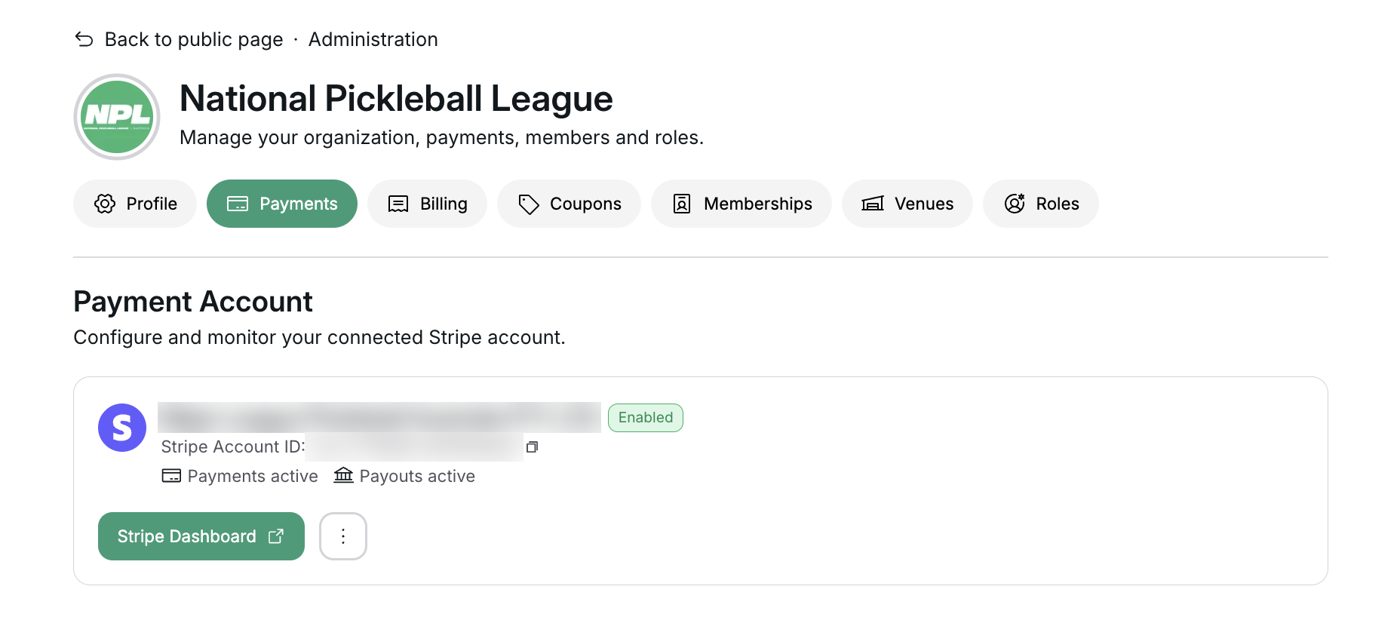
On your organization page, click Admin → Payment Account. Choose your Bank account country and click Connect Stripe. You are redirected to Stripe to finish onboarding.
Registration can't open until this account can take payments, even for free events. When it's ready, the page shows Enabled and Payments active.
More help: what if Stripe asks for more information?
If Stripe needs more details, the page shows Action required and a Complete Requirements button. Refresh status re-checks the account. If Stripe turns off charges for your account, registration is disabled for your tournaments and you get an email ("Action required: registrations disabled…"). Registration turns back on automatically once you meet Stripe's requirements.
2Set registration fees
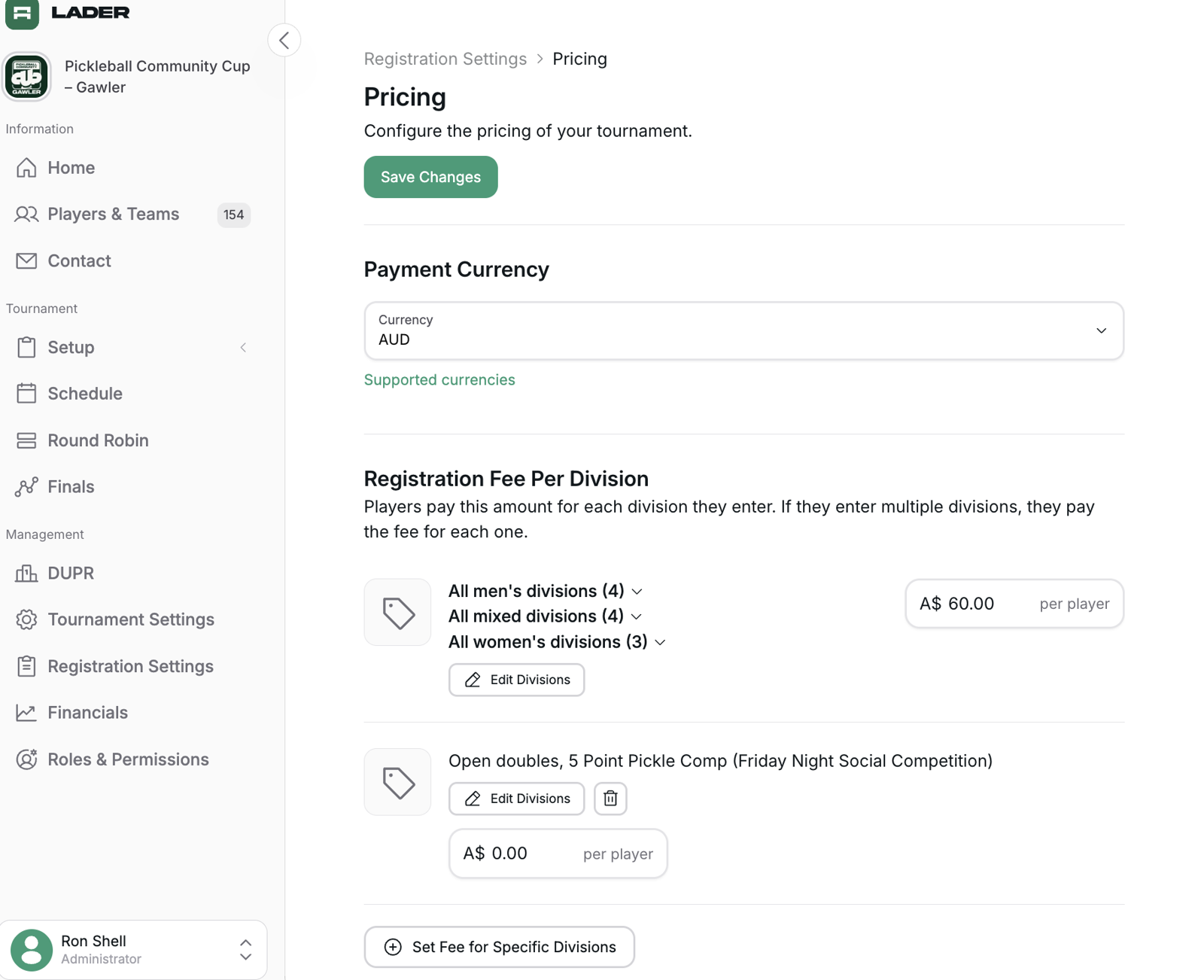
In the tournament's Registration Settings, find Pricing and click Set Up (or Edit if pricing is already saved).
- Under Payment Currency, pick a currency first. If it differs from your Stripe account's default currency, a note warns that Stripe may charge currency-exchange fees.
- Under Registration Fee Per Division, set the fee. It applies to all divisions unless a specific fee is set. The fee is per player, per division: a player entering two divisions pays it twice, and each player in a doubles pair pays their own fee.
- Click Set Fee for Specific Divisions for any division that costs more or less, including $0 for a free division.
- Click Save Changes.
Each registration is locked to the prices in effect when it was made. Changing prices later only affects new registrations. The exception is a player claiming a waitlist spot: they pay the prices in effect when they claim.
3Add discounts (optional)
- Early Bird Discounts: a lower price for players who register before a deadline. Click Add Early Bird Discount, choose Valid for all divisions or Valid for selected divisions, then set a deadline (date and time) and a discount per division. Click Add Deadline to add more tiers. Only one early bird discount applies per division: the one with the nearest deadline that hasn't passed when the player is charged.
- Multi-Division Discounts: a discount on a player's 2nd, 3rd (and so on) division. Click Add Multi-Division Discount, set the Nth entry (2 or higher) and the discount per division. The discount goes on the division that is that player's Nth registration in the tournament, so a player who adds a second division later gets the discount on that one. Divisions they have already paid for are never re-priced or refunded. Waitlist entries don't count until the player claims the spot.
- Coupons: codes players enter at checkout. Create them per tournament (Registration Settings → Coupons) or for the whole organization (organization Admin → Coupons). An organization coupon only works at tournaments set to accept organization coupons. Coupons can be limited to specific divisions, and can waive the platform fee (see Who pays what below).
Discounts apply in this order: base price → early bird → multi-division discount → coupon. A discount never takes a division below $0.
4Who pays what
- Each player pays their own share. On a doubles entry, the registrant pays their own fee when they register, and the invited partner pays theirs when they accept.
- The platform fee is LADER's fee, separate from your registration fee. Players see it as its
own Platform fee line at checkout and pay it.
- It's 2.50 in the tournament's currency (HK$15 for HKD, ฿60 for THB) per division entry, up to two fees per player per tournament.
- Your organization's agreement with LADER may set a different fee.
- Free divisions still carry the platform fee. A player entering a $0 division pays the platform fee at checkout.
- Waiving the fee. You can waive the platform fee with a coupon that has Waive platform fees turned on, or for one player with the Waive fee link under Platform fee in their balance. LADER bills your organization for any waived fees after the tournament.
5Track money in Financials
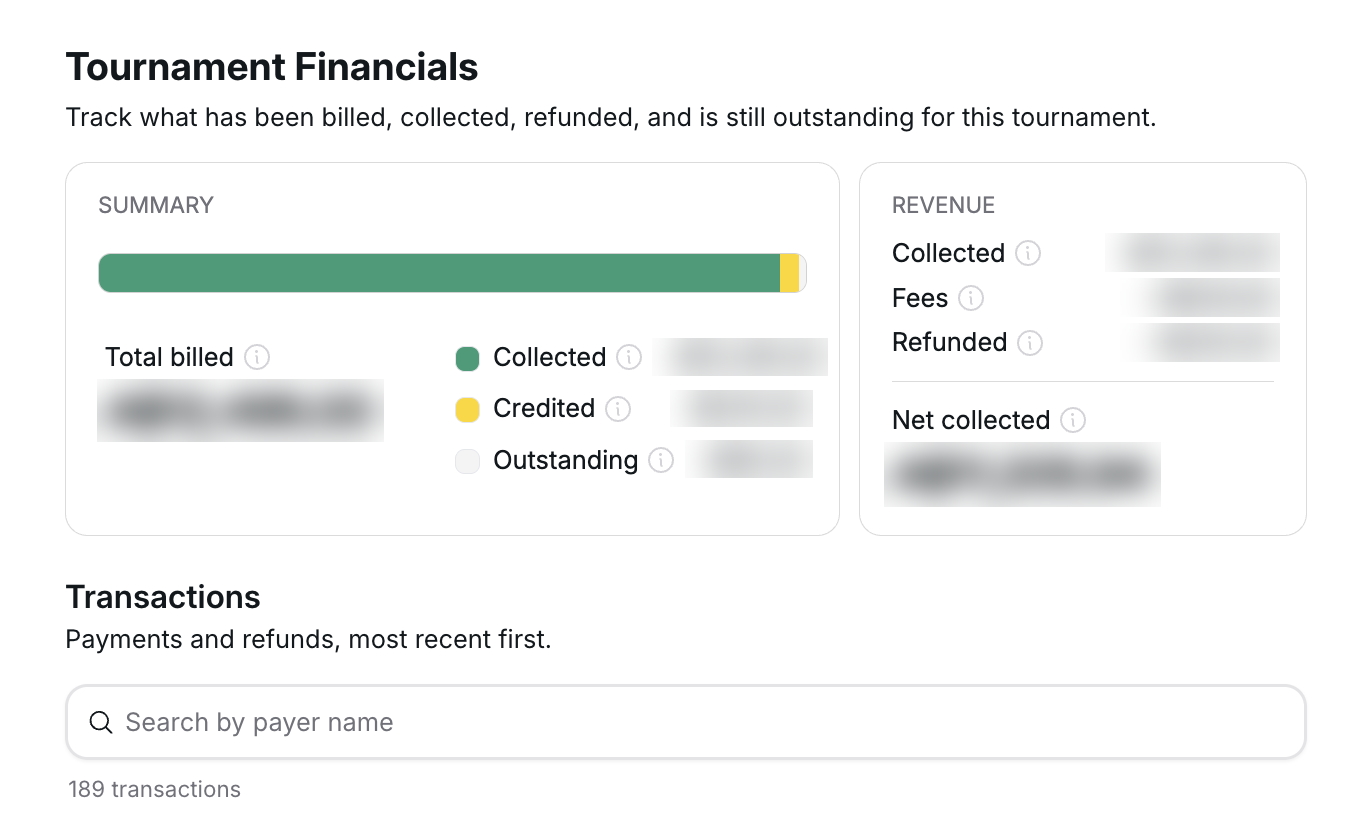
Once registration is live, open Financials in the tournament sidebar. The Tournament Financials page shows a summary (Total billed, Collected, Credited, Outstanding) and revenue (Collected, Fees, Refunded, Net collected). Below that is the list of transactions (payments and refunds, most recent first), which you can search by payer name. Open a payment to see its line-by-line breakdown.