Require waivers
How to make players read and accept your waivers (liability releases, codes of conduct) before their registration is complete. Waivers belong to your organization, can be reused across tournaments, and keep a dated record of who accepted which version.
Step-by-step
1Add a waiver to the tournament
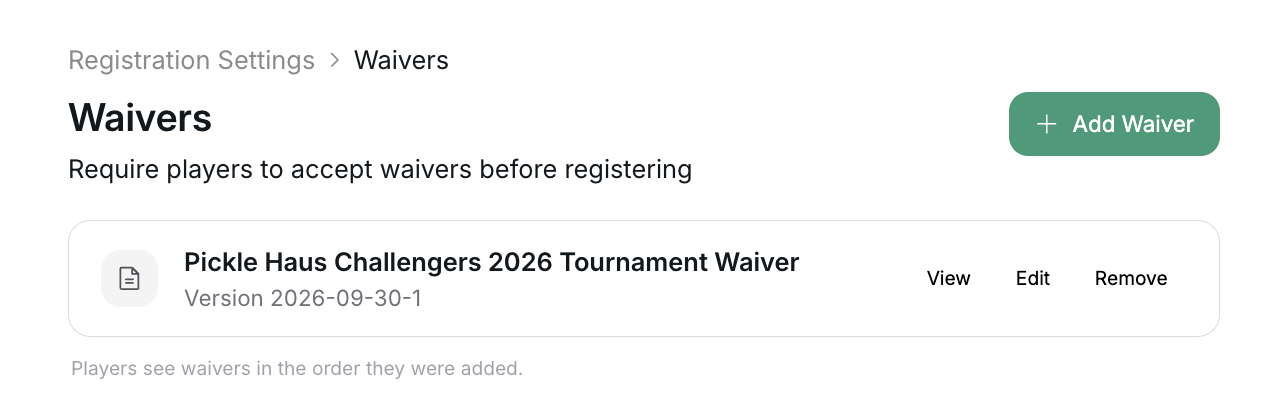
On the Waivers page, click Add Waiver. The Add a Waiver panel lists your organization's waivers:
- Click Require next to an existing waiver to add it to this tournament.
- Or click Create New Waiver, give it a Name (for example "Liability Waiver 2026") and paste the Waiver text players must read and agree to, then click Create. A new waiver is required at this tournament straight away.
Players see waivers in the order they were added. Each required waiver shows its version label (for example "Version 2026-09-14-1"), with View, Edit and Remove buttons. On a phone these are in the row's ⋮ menu (View waiver, Edit waiver, Remove from tournament).
2What players see
During registration, waivers appear on the Player Details step, below the form questions. If the tournament has no form questions, they appear on their own Waivers step. Each waiver has a checkbox, "I have read and agree to {waiver name}", and the name opens the full text. A player can't continue without accepting every required waiver. Each acceptance is recorded against the exact version of the text the player was shown.
Acceptances are recorded per tournament. A player who accepted the same waiver at another of your tournaments still accepts it again here.
Players can see their waivers and acceptance status on My Registration.
3Editing a waiver
Click Edit on the waiver's row. The panel shows the current version and says "Changing content creates a new version".
- Renaming only saves straight away. Nothing changes for players.
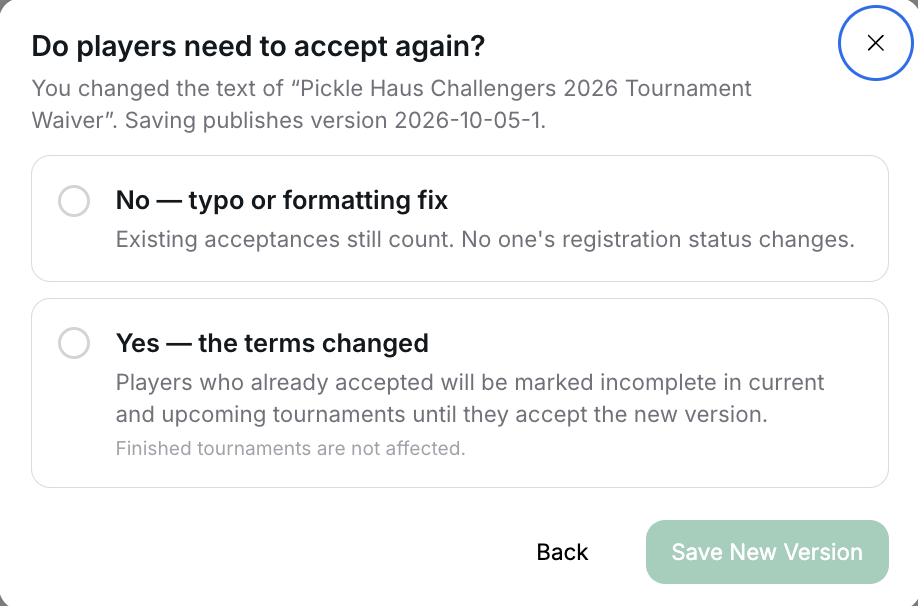
- Changing the text always publishes a new version. Before anything is saved you're asked Do
players need to accept again? and must pick one option, then click Save New Version:
- No — typo or formatting fix: existing acceptances still count, and no one's registration status changes.
- Yes — the terms changed: players who already accepted are marked incomplete in current and upcoming tournaments until they accept the new version. They get an email titled "New requirements for" followed by the tournament name, with a Complete My Registration button. Finished tournaments are not affected.
If the waiver is also used at other tournaments, the edit panel says so: "This waiver is used in N other tournament(s) — your changes apply everywhere it's required."
More help: adding a waiver after registration opened
Adding a required waiver mid-registration has the same effect as a terms change, but only for players who haven't already accepted the current version at this tournament. Anyone whose registration was complete becomes incomplete until they accept, and is emailed about the new requirement. Add waivers before opening registration when you can.
4Removing a waiver from the tournament
Click Remove on a required waiver's row and confirm with Remove Waiver. Players no longer need to accept it for this tournament. Anyone who was incomplete only because of that waiver becomes complete. The waiver stays in your organization's library for other tournaments.
Acceptance records are kept. If you require the same waiver again at this tournament, players' earlier acceptances still count.
More help: archiving or deleting waivers in your library
In the Add Waiver panel, each library waiver that isn't required at this tournament has a ⋮ menu:
- Archive: shown for a waiver that has been used (required at a tournament or accepted by anyone). It can't be added to tournaments anymore, but it stays required at any tournament that already uses it. Archived waivers are listed under Archived (N) in the same panel, where Restore brings them back.
- Delete: shown instead for a waiver that has never been used. It is deleted permanently.
On a phone the same actions read Archive from organization and Delete from organization. These library actions never appear on the tournament's own waiver rows, which only offer Remove.
If every active waiver is already required at this tournament, the panel shows "All waivers already required".
An archived waiver that a tournament still requires keeps its row on that tournament's Waivers page with an "Archived" label. It can't be edited, but you can Restore or Remove it.
5Handling individual players
On a player's manage page (Players & Teams → the player), the Waivers section shows each waiver's status, for example "Accepted on 12 Oct 2026", "Marked as accepted by Sam Lee on 12 Oct 2026" or "Not accepted yet". If a newer version needs accepting, it also says "A newer version (2026-10-05-1) needs to be accepted again". From there you can:
- Mark as Accepted: available while the waiver isn't satisfied. It records that the player accepted outside the platform (for example on paper), and the record is attributed to you.
- Revoke Acceptance: available while the player's acceptance counts. It removes every acceptance of that waiver recorded for the player at this tournament. They must accept again, and their registration is incomplete until they do.