Set up waitlists
How to let players queue for full divisions and offer them spots as they open: turn on the waitlist, choose how offers are sent, set the claim window and an optional cutoff, and manage the queue.
Step-by-step
1Turn on the waitlist
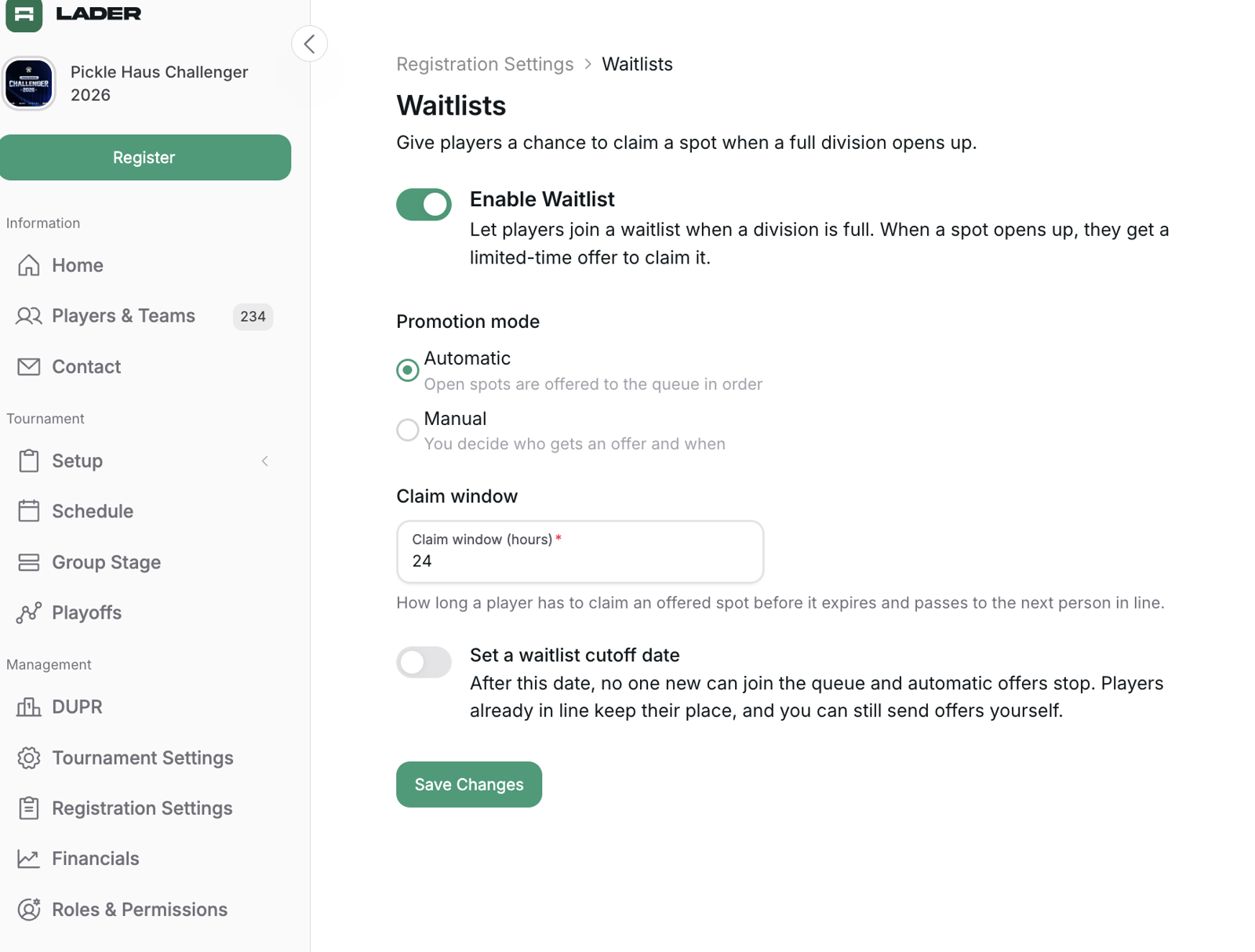
In Registration Settings, open Waitlists and turn on Enable Waitlist. The switch saves straight away. Other changes on this page need Save Changes.
From then on, a player choosing a division with a spot limit sees Join waitlist instead of a spot when:
- the division is full, or
- other players are already queued for it (a spot that opens up always goes to the waitlist first).
2Choose how waitlist offers are sent
- Automatic: when a spot opens up, the next eligible entry in the queue is emailed an offer to claim it. A spot opens when a player is withdrawn, an offer expires or is declined, or you add spots (see Changing a division's spot limit). Players see their place in line ("You're #3 on the waitlist"), their confirmation email includes it, and the division shows how many are waiting ("Join waitlist (3 in queue)").
- Manual: no offers are sent automatically. You send each one yourself from Players & Teams, so queue order doesn't decide who gets the next spot. Players see "You're on the waitlist" with no position. Your queue shows Offers sent manually, and each entry's status reads Waitlisted, without a #1, #2 position.
3Set the claim window
The Claim window (hours) is how long a player has to claim an offered spot. The default is 24 hours and the maximum is 336 hours (14 days). Claiming means completing registration and paying, and all of it (partner, requirements and payment) has to happen inside the window. Players can't extend it, so don't make it too tight.
If the window runs out, the offer expires and the entry leaves the waitlist. In Automatic mode the spot is then offered to the next person in line. In Manual mode the spot simply frees up and you decide who to offer it to.
Changing the claim window only affects offers sent after the change. Offers already out keep their deadline.
4Set a waitlist cutoff date (optional)
The cutoff is optional. Without one, players can keep joining the waitlist for as long as it is on.
To add a cutoff, turn on Set a waitlist cutoff date and choose a Cutoff date and Cutoff time (in the tournament's time zone). The pickers start at your registration close date. After the cutoff:
- no one new can join the queue,
- in Automatic mode, automatic offers stop,
- players already in line keep their place, and you can still send offers yourself.
5Manage the waitlist queue
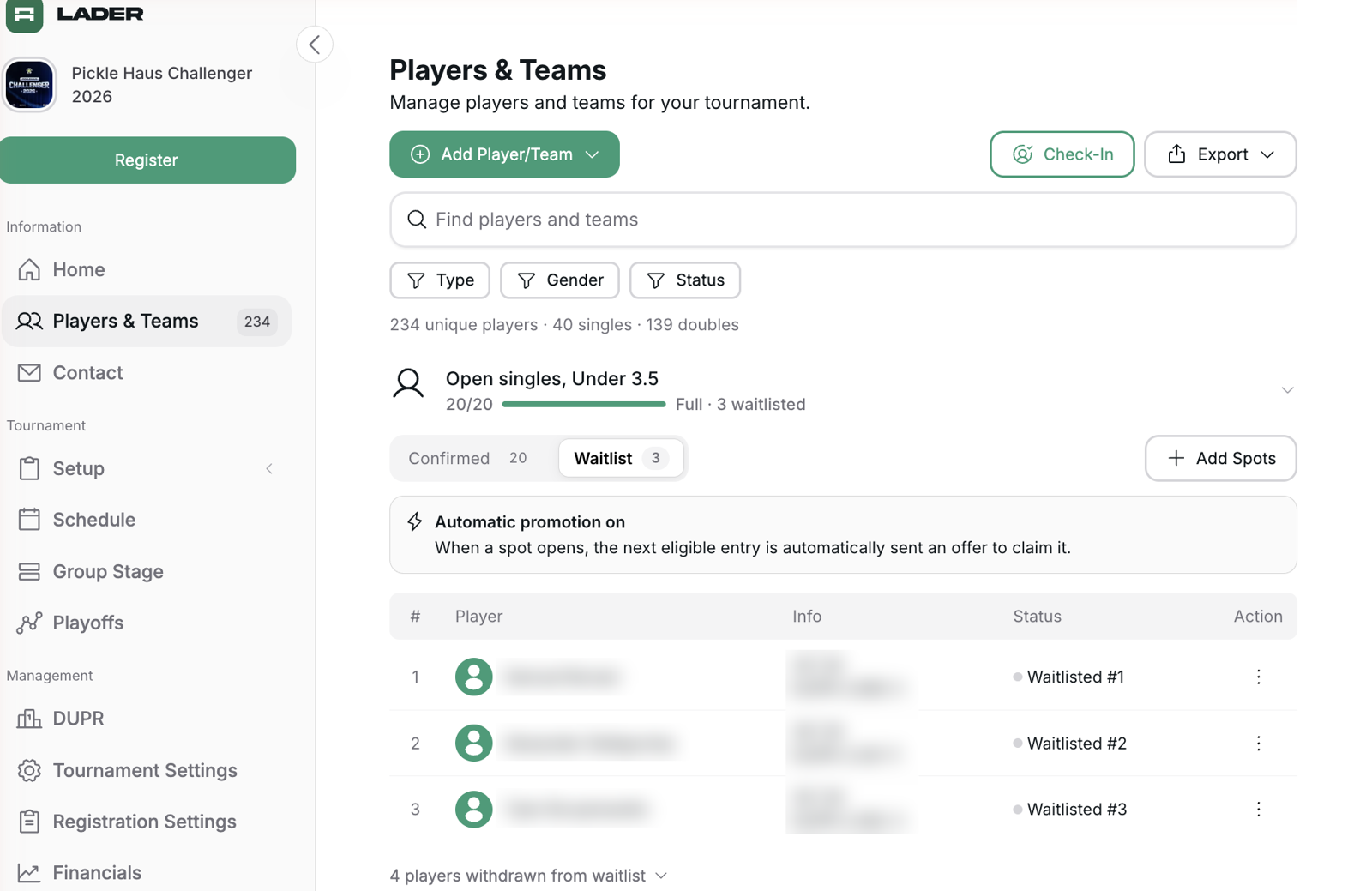
The queue is on the tournament's Players & Teams page. Click a division that has a queue or pending offers to see its Confirmed and Waitlist tabs. An Offered tab appears while offers are pending. In Automatic mode, waitlist entries show their position (Waitlisted #1, Waitlisted #2). Offers show Pending offer with the deadline, or Registering once the player has started claiming. Partners who haven't confirmed are marked "Partner (unconfirmed)".
Use the ⋮ menu in an entry's Action column to:
Send offer now: offer a spot to a queued entry, bypassing queue order. Their claim window starts immediately. This works in both modes, even when the division is full or the cutoff has passed.
Cancel offer: take back a pending offer, including one the player has started claiming. That cancels their registration in progress, unless a payment is already going through. You choose where they go:
- Keep their original position (default)
- Move to the front of the queue
- Move to the end of the queue
- Remove from waitlist
In Automatic mode, the freed spot is offered straight to whoever is first in line. You can't pick a placement that would leave the same player at the front, because they would just get the offer again.
Move up / Move down: reorder the queue.
Remove from waitlist: available while the entry has no pending offer. If it has one, cancel the offer first. The player is emailed.
Manage player / Manage pair: open the entry's detail page.
To add someone straight to the queue, use Add Player/Team. When the division is full or already has a queue, the form asks Where should they go?: choose Waitlist, then click Add to Waitlist. The player needs an account or an email address so they can be notified and claim the spot.
When a division has a queue, Add Spots opens the division's edit page, where you change Spots available → Limit (see Changing a division's spot limit).
Changing a division's spot limit
To increase or decrease a division's spots, go to Setup → Divisions, click Edit on the division, change Spots available → Limit, and click Update Division. Leave Limit empty for no spot limit.
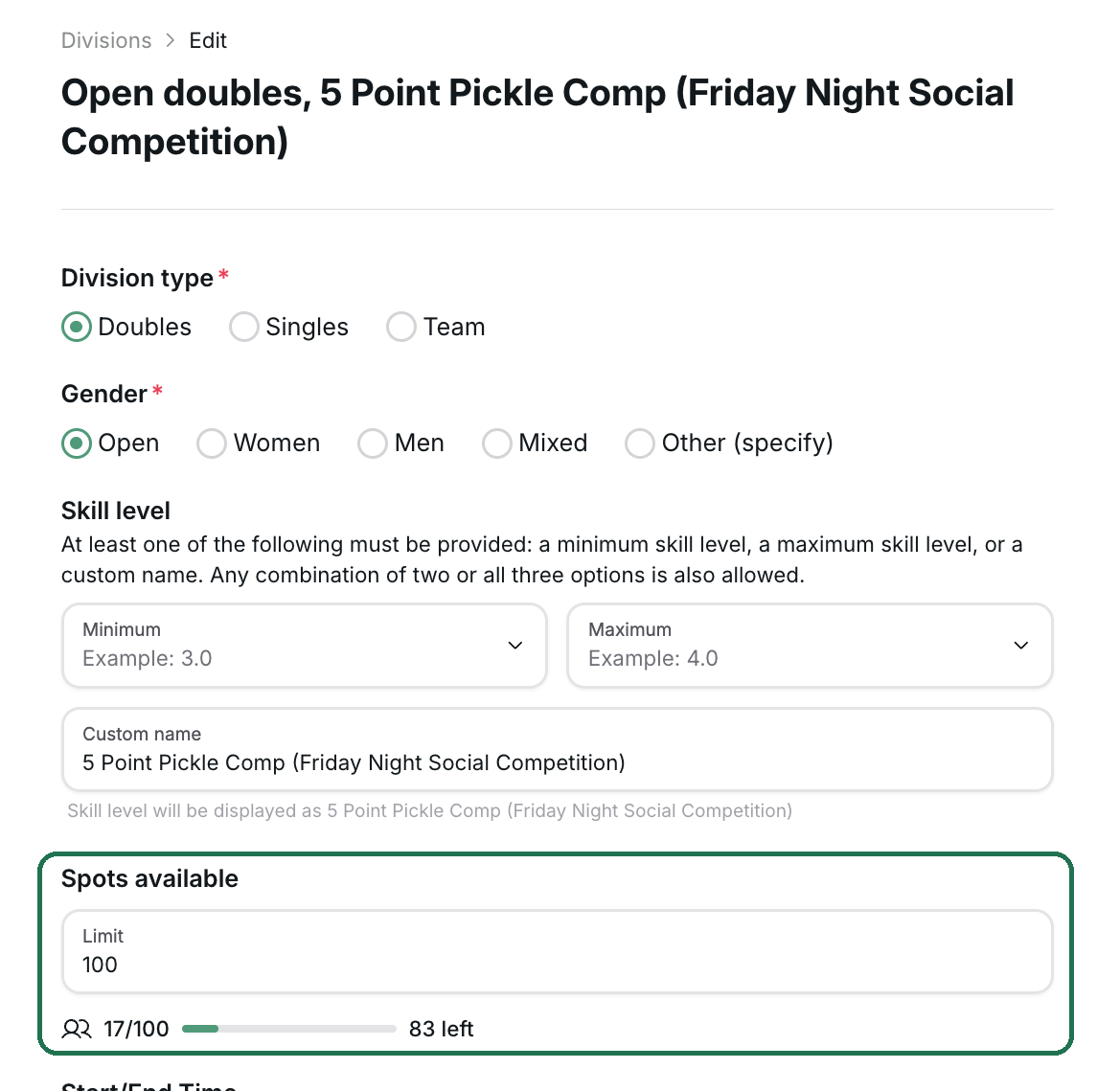
- Adding spots to a division (raising its Limit, or Add Spots on Players & Teams) offers the new spots to the queue (Automatic mode, before the cutoff).
- Lowering a division's spot limit never removes confirmed players. If the new limit is smaller than the confirmed players plus pending offers, the most recent offers are cancelled. Those players go back to the waitlist at their original position, and you're warned before saving.
- Removing a spot limit offers a spot to every waitlisted player in that division at once. This only happens in Automatic mode, before the cutoff. In Manual mode the queue stays and you send offers yourself.
- Extending the registration close date after it has passed, while players are waiting and spots are free, reopens registration. In Automatic mode, the free spots can then be offered to the queue automatically. If you'd rather keep control, send offers manually instead. The Availability page warns you when this applies.