Respond to a partner invitation
What to do when someone enters you as their doubles partner: open the invitation, accept or decline it, and finish your part of the registration.
Step-by-step
1Open the invitation
Click Complete Registration in the invitation email. This opens the invitation page, which shows the tournament, the division and who entered you. If you're not logged in, LADER asks you to log in or create an account first.
You can also find the invitation any time under the notification bell at the top of LADER (the Notifications page). It has the same Complete Registration and Decline Invitation buttons.
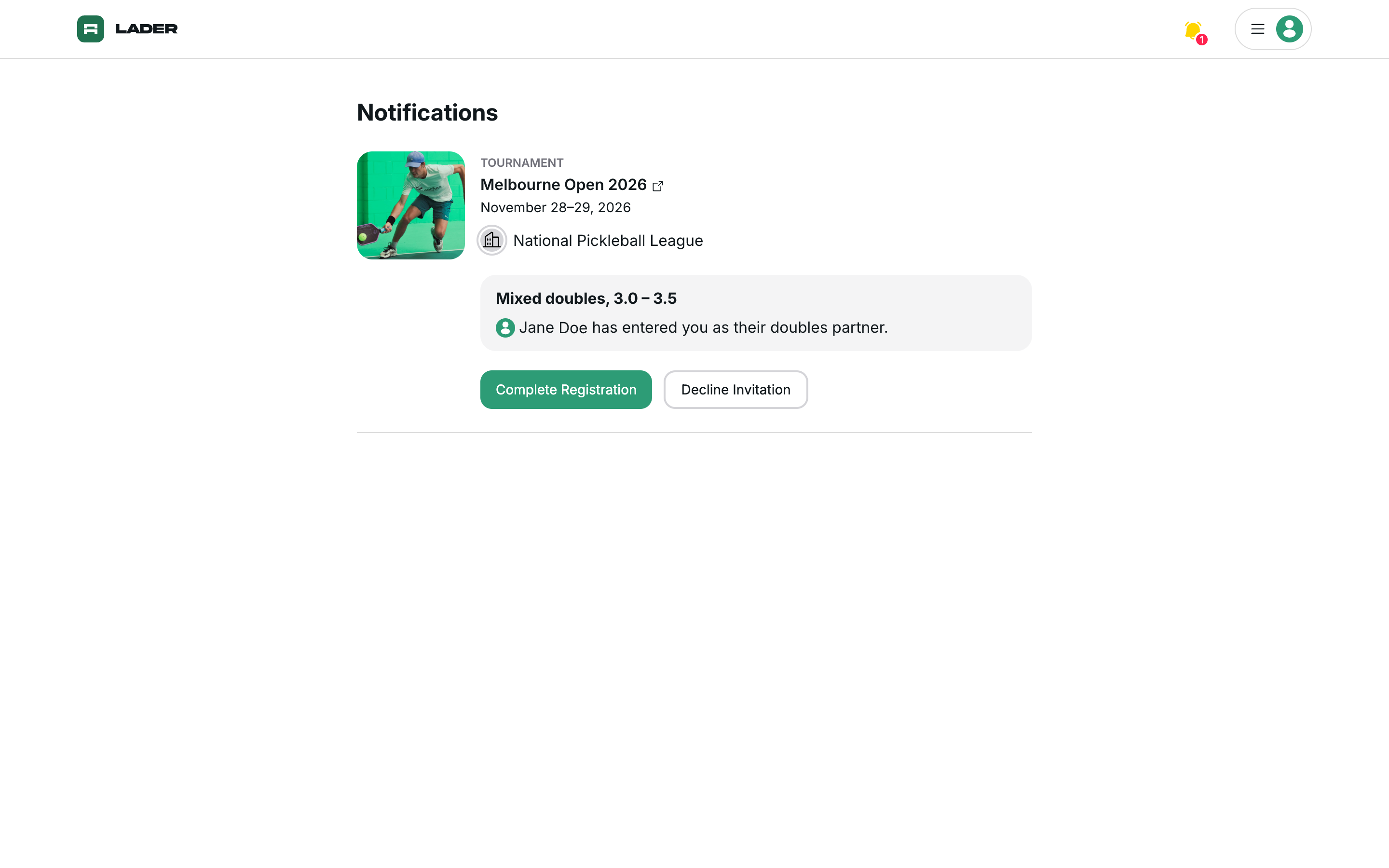
If you start registering for the tournament yourself instead, the Invitations screen comes first. Click Decline Invitation under any invitation you don't want, then Confirm to accept the rest.
More help: the invitation went to a different email from my LADER account
You can accept the invitation with any LADER account. Log in to your usual account first, then open the invitation link.
2Accept or decline
- Complete Registration accepts the invitation. You're added as the partner and go on to the next steps.
- Decline Invitation says no. You're asked to confirm, and you can't undo it. The player who invited you isn't told automatically, so let them know yourself. They can't choose a new partner themselves; only the organizer can change the partner on their entry.
Invitations don't expire, and you can still accept after registration closes. Try not to leave your partner waiting.
3Add your own divisions (optional)
After you accept, if registration is still open, you see the Your Entry page with the division you were invited to. To enter more divisions yourself, click Add More Divisions and tick them. You answer the form once and pay for everything together. To carry on with just the invited division, click Continue.
4Finish your part
Depending on the tournament, you may need to connect DUPR, hold a membership, answer the registration form or accept waivers. If you owe a payment, the Review and Submit page shows it and you pay with Complete Payment.
More help: why don't I owe anything?
Each player pays their own share, so usually you pay your registration fee after you accept. If the division is free, or nothing is outstanding on your side, there's nothing to pay.