Manage your registration
After you've registered, everything happens on the tournament's My Registration page. This guide shows you how to check your status, finish anything that's missing, pay what you owe, update your answers, and get help if you need to withdraw.
Step-by-step
1Open My Registration
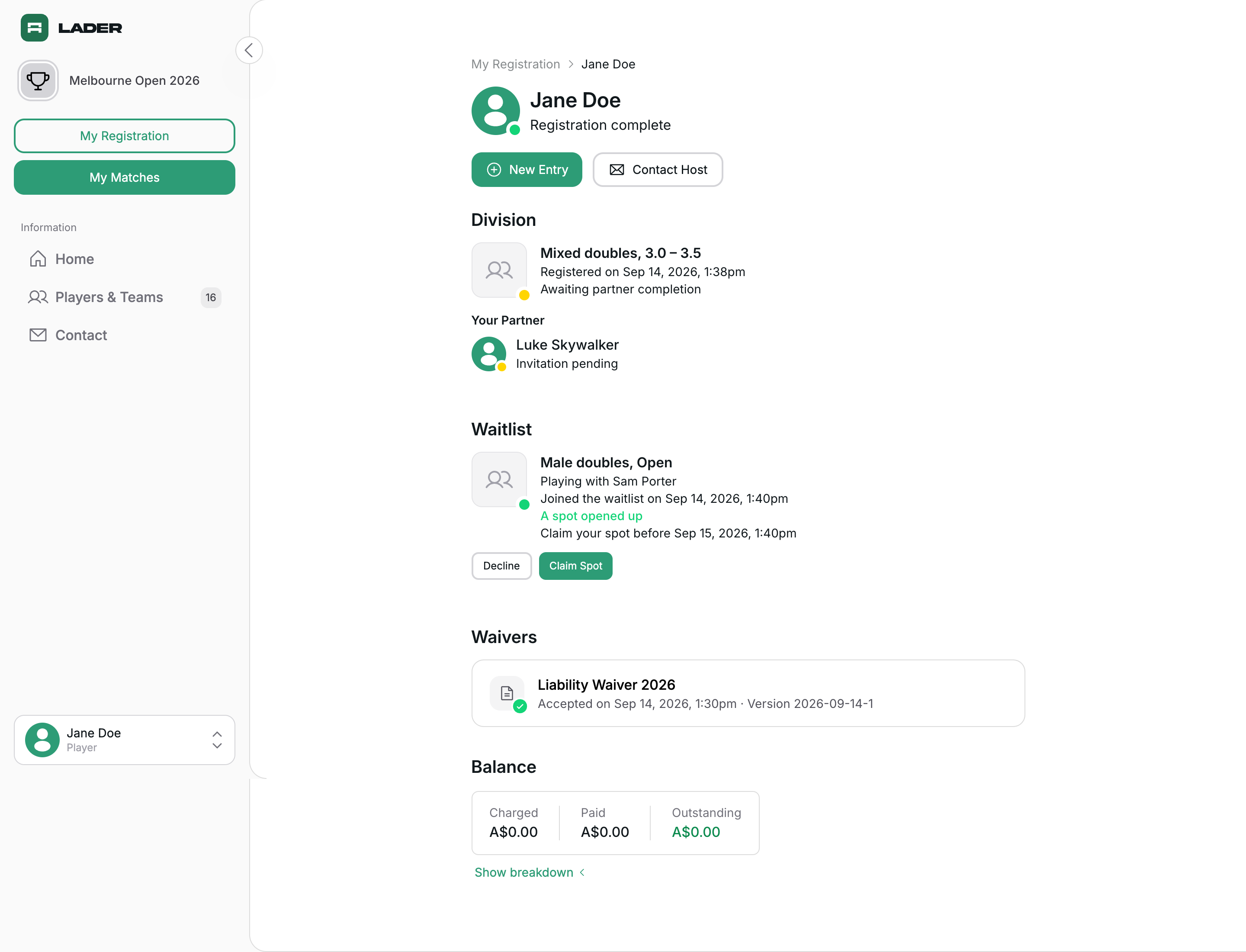
On the tournament page, click Manage Registration. My Registration shows:
- your name and your status;
- the New Entry button (to enter more divisions, while registration is open) or the Complete Registration button (when something is missing), and Contact Host;
- each division you're in, with your partner for doubles;
- any waitlists you've joined;
- depending on the tournament, sections for DUPR, memberships, Form Answers, Waivers and Balance.
2Check your status
The status under your name is about your own part of the registration only.
- Registration complete: you have nothing left to do.
- Registration incomplete: something on your side is still missing. For example:
- you haven't answered all the form questions;
- you still owe your share of the registration fee (each player pays their own share, see Balance);
- you need a membership or a DUPR connection;
- you need to accept a waiver, or accept a new version of one (see Waivers);
- you haven't accepted an invitation yet.
- Withdrawn: the organizer has removed you from the tournament. (If you were only on a waitlist, it says Withdrawn from waitlist.)
Your partner's progress doesn't change your status. If your partner still has something to do, the division shows Awaiting partner completion, and the Your Partner box shows where they're at, for example Invitation pending or Registration incomplete.
More help: my registration was complete, and now it says Registration incomplete
Organizers can add new form questions, waivers, a membership requirement or a DUPR requirement after registration opens, or change a waiver's terms. When they do, your registration changes to Registration incomplete until you finish the new item. You'll get an email titled "New requirements for" followed by the tournament name, with a Complete My Registration button. Click it, or click Complete Registration on My Registration, to finish.
3Pay what you owe
The Balance section shows three amounts: Charged (the total you owe), Paid (what you've already paid) and Outstanding (what's still left to pay). Click Show breakdown to see each amount.
You pay from the top of My Registration, not from Balance. To pay:
- Click Complete Registration at the top of My Registration.
- If registration is still open, you see your divisions first. Click Continue.
- Finish anything else that's missing, then pay on the Complete Payment page.
This is also how an invited partner pays their share, and how you pay any fee added after you registered.
4Update your form answers and check your waivers
- To change your answers, go to Form Answers and click Edit Details.
- Waivers lists each waiver you need and whether you've accepted it. Click a waiver's name to read it. To accept a waiver you haven't accepted yet, click Complete Registration.
5Manage your waitlists
If you've joined any waitlists, My Registration has a Waitlist section. It shows your place in line, any spot you've been offered, and buttons to add or change your partner or leave the waitlist. See Join a waitlist and claim a spot.
Withdrawing from a tournament
To withdraw, contact the organizer and ask them to withdraw you. Click Contact Host on My Registration. It takes you to the Contact section of the tournament page, which shows the organizer's email and phone number. If your partner wants to keep playing, the organizer can replace you with another player instead.

Refunds are up to the organizer and their refund policy. If they give you a refund, it goes back to the card or account you paid with.