Register for a tournament
How to register for a tournament as a player: open the tournament page, choose your divisions, add your partner for doubles, complete any requirements, and pay your registration fee.
Step-by-step
1Open the tournament page and click Register Now
Click Register Now on the tournament page. On desktop, the menu on the left also has a Register button.
If you've already registered for this tournament, the button reads Manage Registration and opens My Registration. See Manage your registration.

More help: the button is greyed out or missing
- Register Soon (greyed out): registration hasn't opened yet. The opening date is shown under the button.
- Registration Closed (greyed out): the registration deadline has passed.
- Register Now but greyed out: the organizer hasn't finished setting up registration.
- No button: the organizer hasn't turned on registration for this tournament.
The button still works when some divisions are full. Full divisions are shown inside the registration steps. If you think registration should be open, contact the organizer.
2Respond to any pending invitations
If someone has already entered you in this tournament (for example as their doubles partner), the Invitations screen comes first. Click Decline Invitation on any you don't want, then click Confirm to accept the rest and continue. After confirming, you can add more divisions of your own in the same registration. See Respond to a partner invitation.
3Choose your divisions
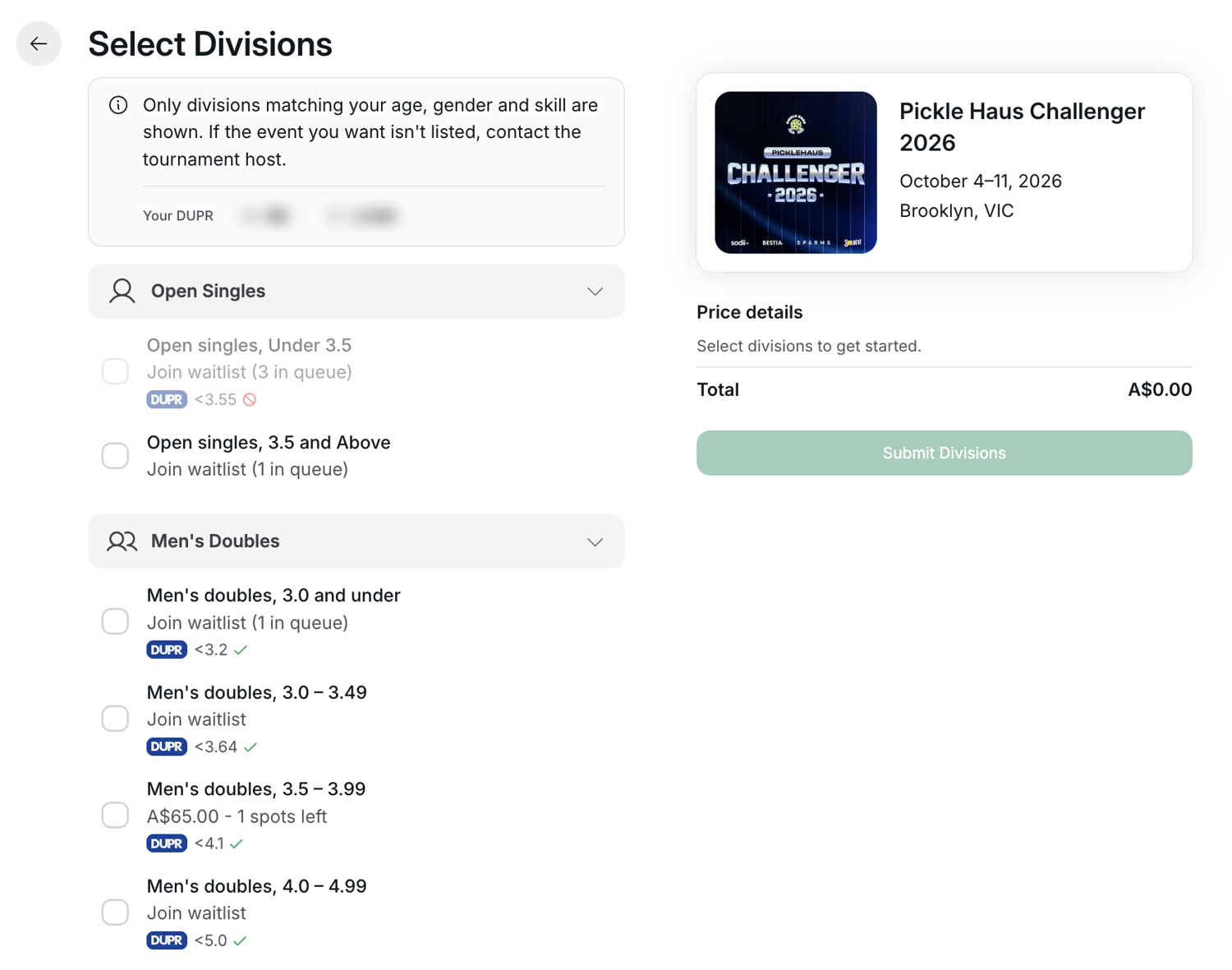
On Select Divisions, tick one or more divisions and click Submit Divisions. Each division shows its price (with any early bird discount shown against the full price) and how many spots are left, or Available when there's no spot limit. If you're already registered, this step is called Add Divisions and your current divisions show Registered.
If a division is full (or already has people waiting) and the tournament has a waitlist, it shows Join waitlist instead. You can join the waitlist for free in the same registration. See Join a waitlist and claim a spot.
DUPR rating ranges (DUPR gating). Some tournaments only let you enter divisions that match your DUPR rating. When a tournament does this:
- The top of the list shows Your DUPR: your doubles and singles ratings, or NR if you're not rated yet.
- Each division with a DUPR requirement shows a DUPR badge with its range, for example "3.25–4.25", "3.0+" (3.0 and above) or "<3.5" (up to and including 3.5). A green tick means your rating fits. A red symbol means it doesn't, and that division is greyed out.
- Singles divisions use your singles rating. Doubles divisions use your doubles rating.
- If you're not rated yet (NR), you're treated as 0. You can enter divisions that only have an upper limit, but not divisions with a minimum rating.
- For doubles, your partner's rating must also be in the range if they've connected DUPR.
- If you haven't connected DUPR, divisions with a DUPR requirement are greyed out. Click Connect my DUPR at the top of the list. See Connect your DUPR account.
The organizer sets each division's range. If you think your rating should qualify, contact the organizer.
Once you submit, your spots are reserved for 15 minutes (or until registration closes, if that's sooner). A Spot reserved – 15 minutes to complete banner (Spots reserved for several) counts down the time left. In the last 2 minutes, an Add 5 minutes link appears, which you can use once. Waitlist places aren't on this timer.
More help: a division is greyed out or missing
A note at the top of the list explains that only divisions matching your age, gender and skill are shown.
- Missing divisions: divisions that don't match the age or gender on your profile aren't shown. Team divisions aren't shown either, because the organizer enters teams.
- Greyed-out divisions are shown but can't be ticked:
- Sold out: the division is full and there's no waitlist.
- Divisions with a DUPR requirement, when your rating is outside the range or you haven't connected DUPR (see DUPR rating ranges above).
- Divisions you're already Registered in or on the waitlist for.
If you think you should be eligible, contact the organizer.
4Choose your partner (doubles only)
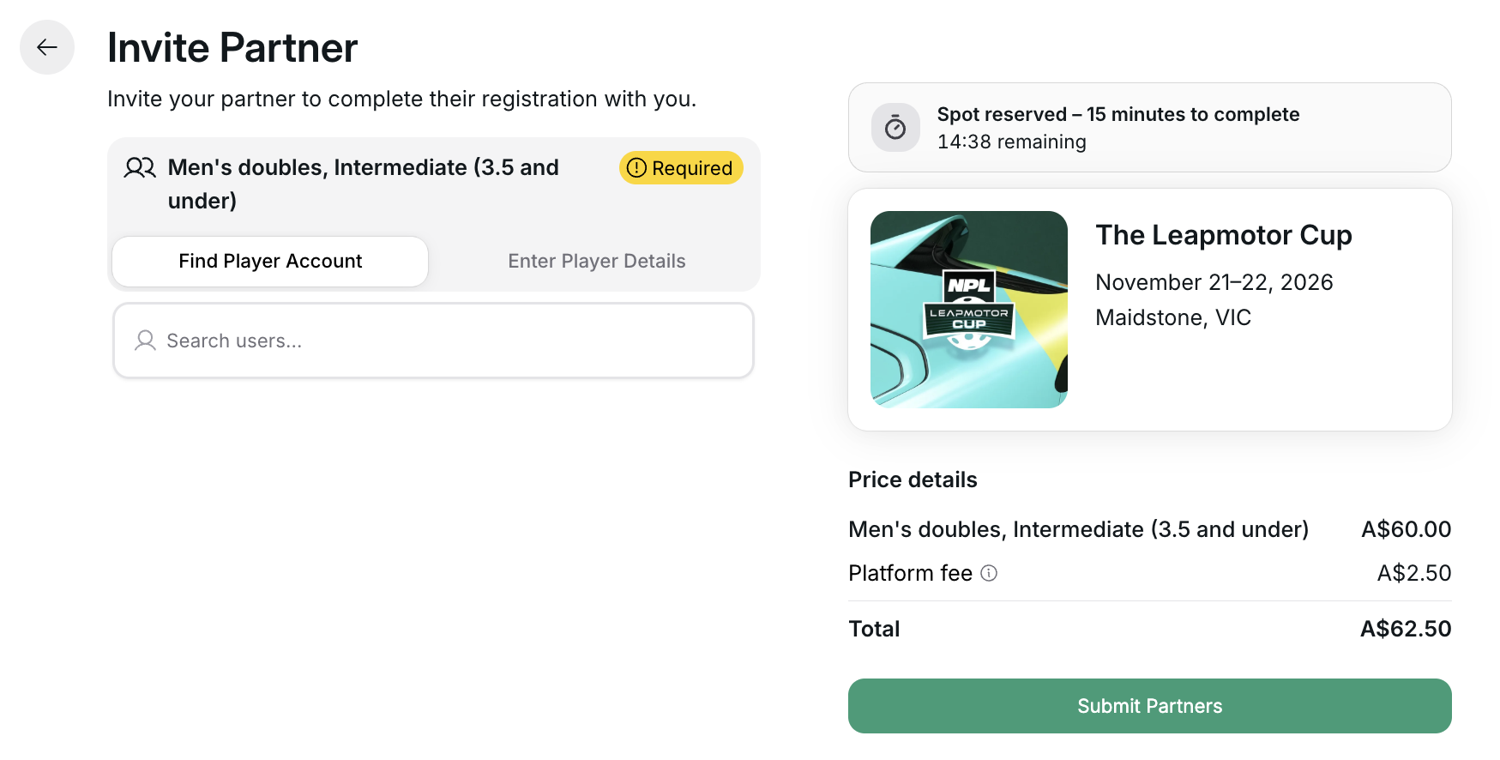
On Invite Partner (Invite Partners if you entered several doubles divisions), choose a partner for each doubles division:
- If they're already on LADER, use Find Player Account to search for them and select them.
- If they're not on LADER yet, use Enter Player Details and enter their first name and email (last name is optional).
Then click Submit Partners.
Your partner's invitation email is sent after you submit your registration at the end, not at this step.
More help: it won't let me choose my partner
You can't choose yourself, someone already registered in that division, someone whose age or gender doesn't match the division, or someone whose connected DUPR rating is outside the division's range. Choose a different partner or contact the organizer.
5Complete DUPR and membership requirements
Depending on the tournament, you may be asked to:
- Connect your DUPR account. See Connect your DUPR account.
- Hold a membership. If the tournament requires one you don't have, you can get it during registration. A membership from the host organization is added to your total at the end. A membership from a different organization is paid for separately at this step, and your registration fee is paid later at checkout. Your spot stays reserved in the meantime.
6Answer the registration form and accept waivers
Answer the organizer's questions on Player Details. Questions you've answered before, at any organization on LADER, are pre-filled with your most recent answers. Check them before continuing.
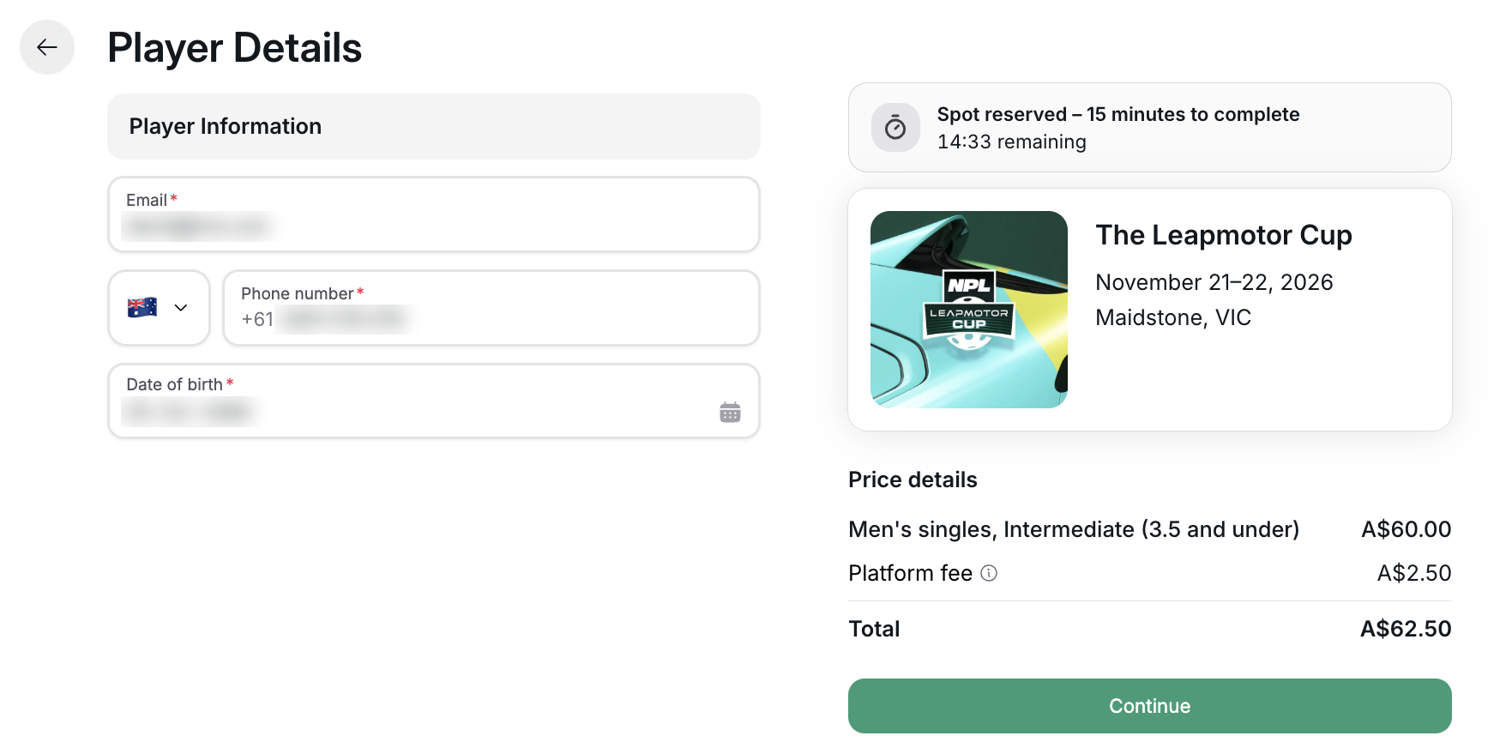
If the tournament requires waivers you haven't accepted yet, they appear on this step too. (The step is called Waivers when there are no questions.) Tick I have read and agree to … for each one. The waiver name opens the full text. You can read your waivers again later on My Registration.
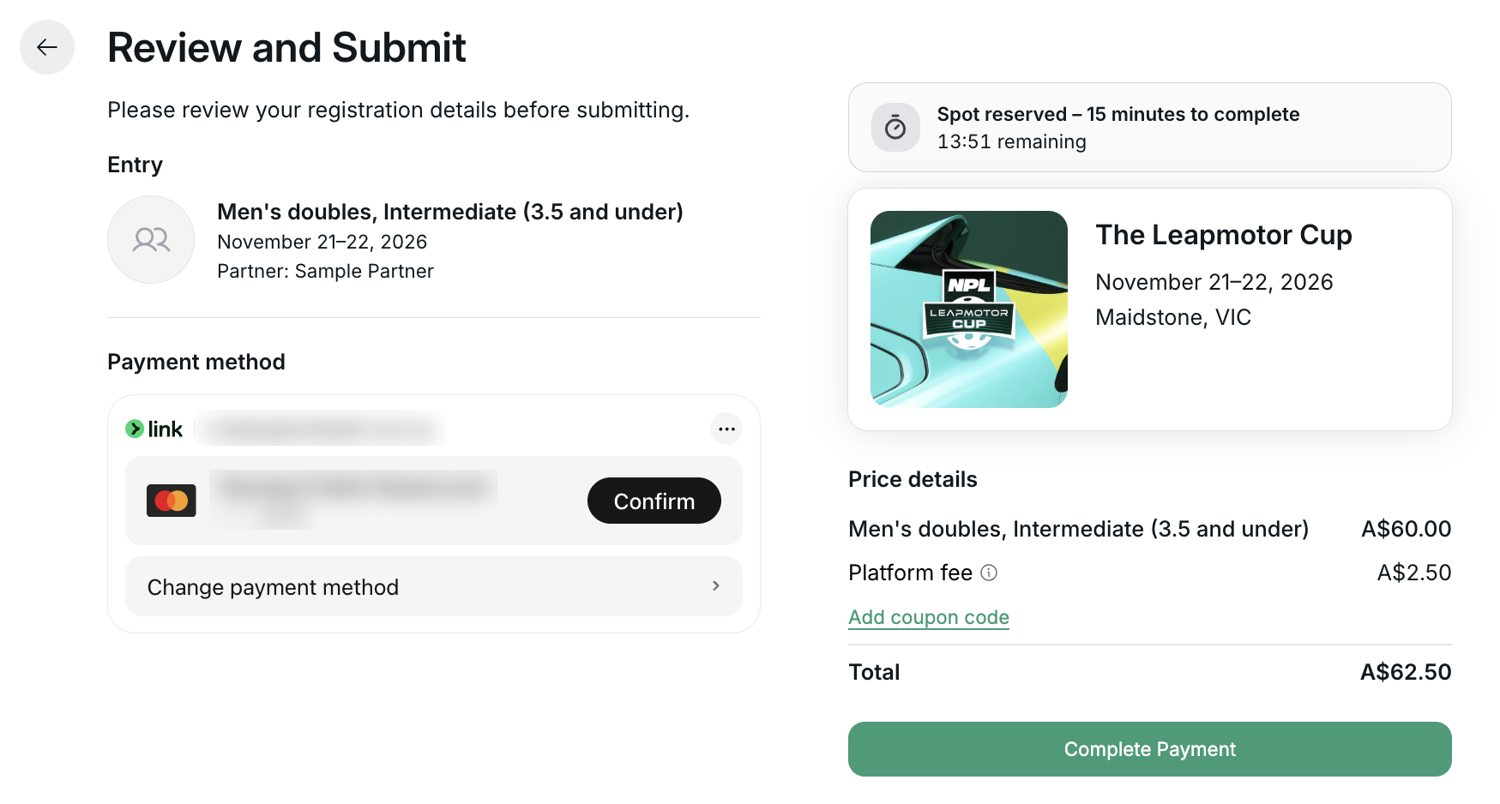
7Review and submit
Review and Submit shows your divisions, your partners, any memberships you're buying, and the price details: registration fees, any early bird or multi-division discounts, and the Platform fee.
- To use a coupon, click Add coupon code in the price details.
- If there's an amount to pay, enter your card details under Payment method.
Nothing is final until you click the button under the price details:
- Complete Payment: shown whenever your registration includes something priced, even if a discount or coupon brings the total to $0.
- Submit Registration: shown when nothing in your registration is priced, for example when you're only joining waitlists.