
Let players register for a session on LADER
A complete walkthrough for organizers: create a session with paid registration and a waitlist, change its settings, and manage its players and waitlist.
In this video
The 3 parts
Prefer to read?
Transcript
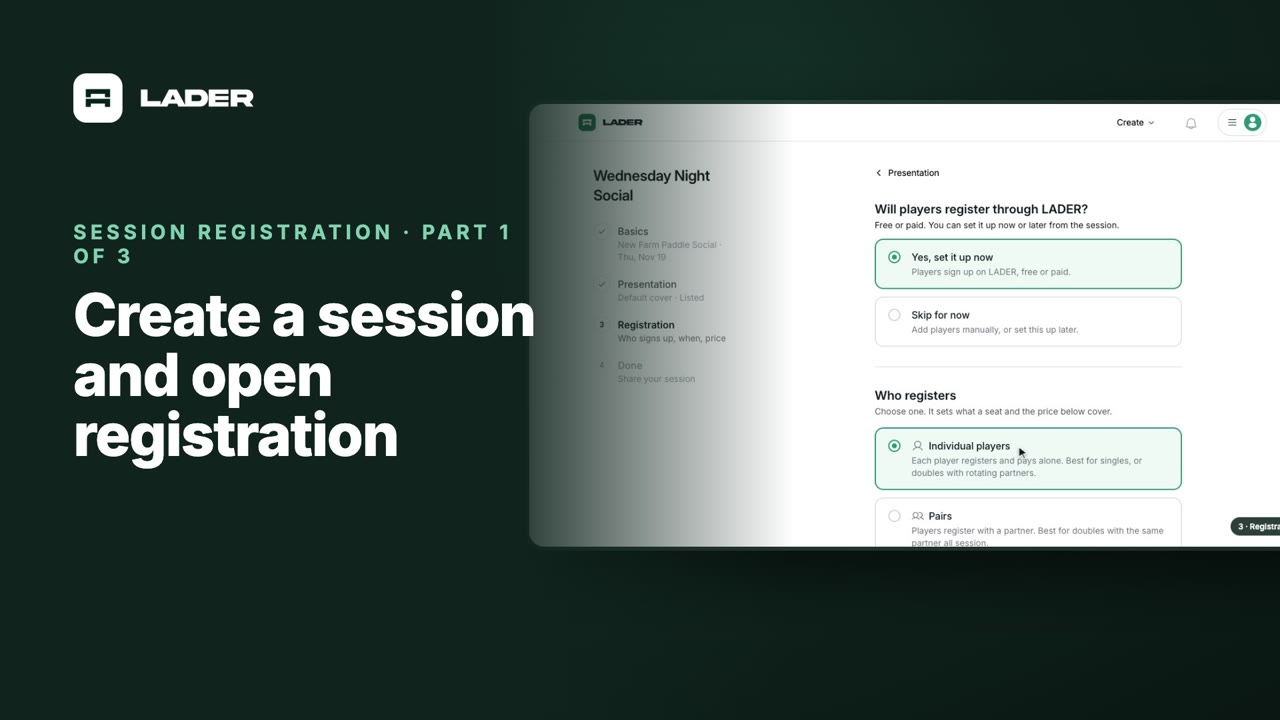
Players can sign up for your sessions on LADER, free or paid, instead of you adding everyone. Here's how to set it up.
Registration is part of creating a session. The setup has four short steps.
Click Create in the top bar, then Session.
On Basics, your organization is already the host. Give the session a name, pick where it's played, and set the date and time.
Running the same session every week? Copy an existing session instead: every step is filled in for you. Click Continue.
On Presentation, add a cover image, a description and your contact details, if you like. Click Continue.
On Registration, choose Yes, set it up now. Then choose who registers: individual players, or pairs who sign up with a partner.
Registration opens now, and closes when the session starts. Set Max players to close it early when it's full, and turn on the waitlist so players can queue for a spot.
To charge for it, turn on Paid session and set the price per player. LADER collects the payments for you. You can also require DUPR, a waiver, or your own registration form.
The button says what happens next. Click Create and Open Registration.
Your session is ready, and registration is open. Copy the link to share it in your group chat, or click View Session Page to see what players see.
You can change any of this later.
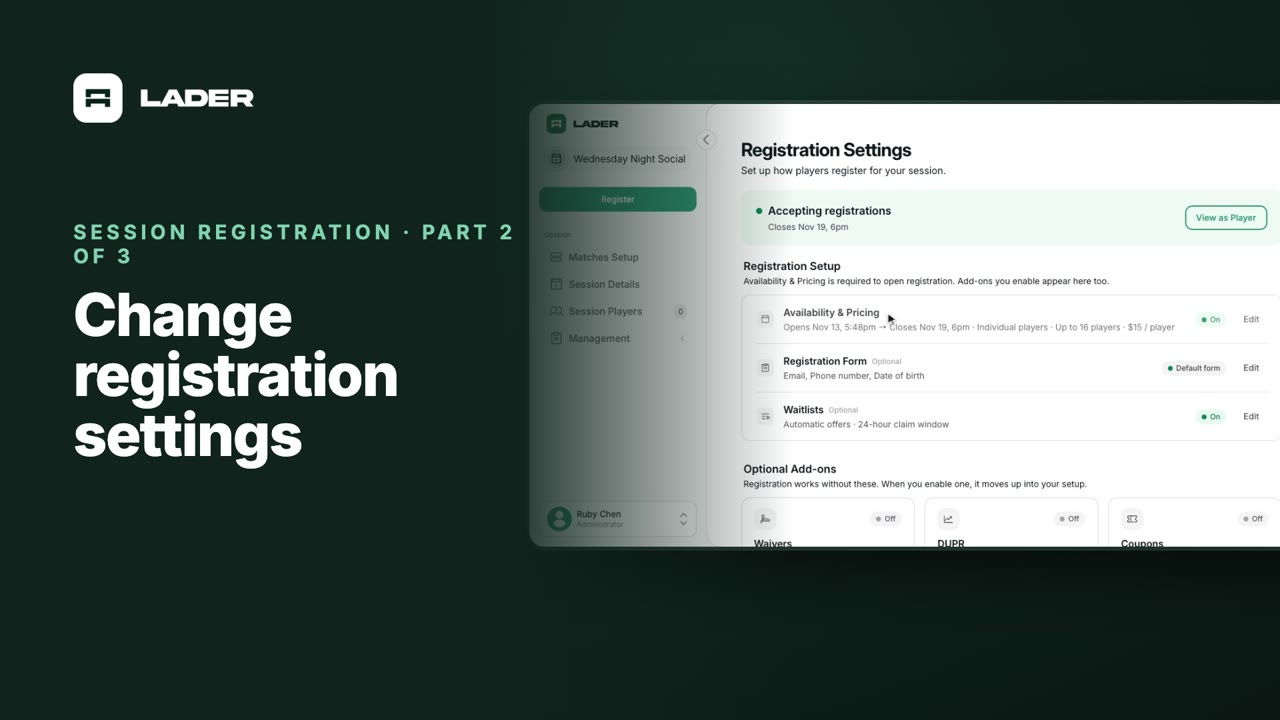
Under Management, open Registration Settings. The top says whether you're accepting registrations, and when registration closes.
Availability and Pricing holds the window, the limit and the price. Optional add-ons, like waivers, DUPR, coupons and memberships, sit below: click Set up on one to turn it on.
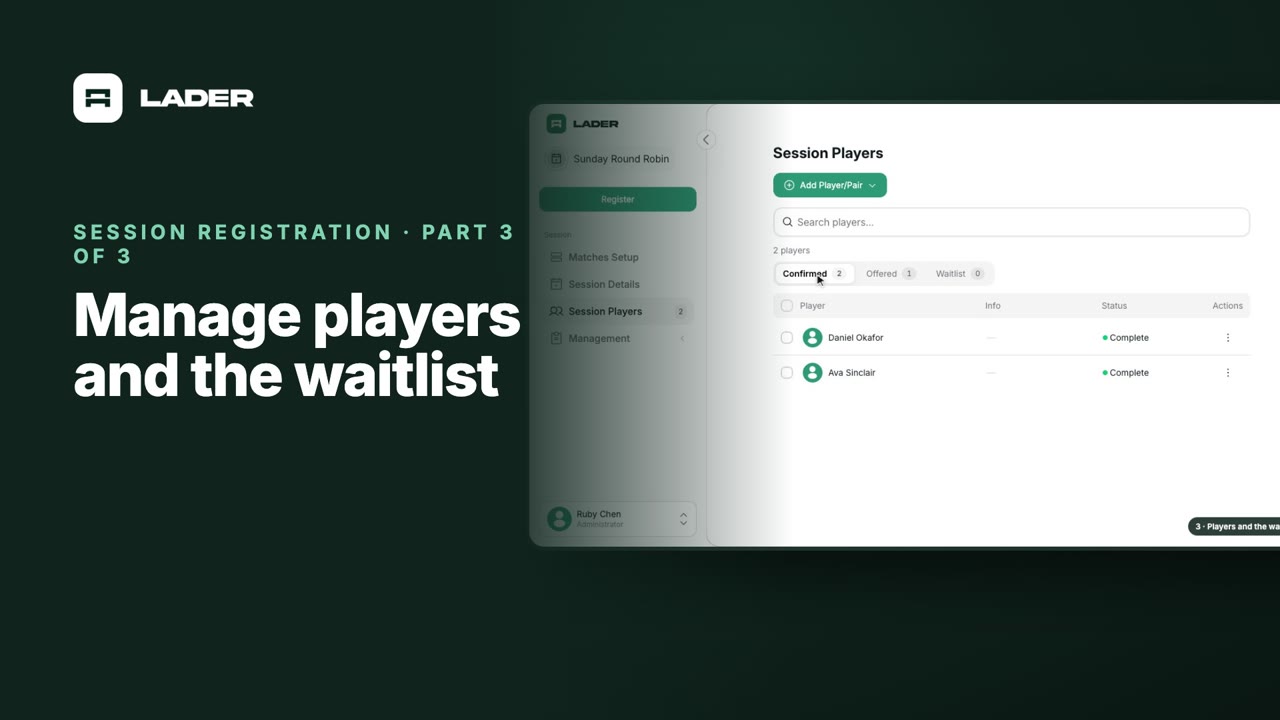
Players who register show on Session Players. Here's a session that's already full.
Registered players are under Confirmed. With a waitlist on, a spot that opens up is offered to the next player in line automatically, and they show under Offered until they claim it.
To remove a player, open their actions menu, and choose Remove player. Their spot goes to the waitlist. Payments aren't refunded automatically: refund a paid player from your Stripe dashboard.
Still stuck?
Send us a message and we will walk you through it, or book a demo and we will show you live.
The clubs, events and people shown are fictional demo data. Narration uses an AI-generated voice.