
Run a session on LADER: from setup to scores
A complete walkthrough for organizers: create a session, add players, run Random Matchups, enter and lock scores, and run a Ladder with seeds, promotions and new rounds.
In this video
The 5 parts
Prefer to read?
Transcript
A session is one block of play, like a club night or a social. In this video you'll run one from start to finish: create it, add your players, choose a format, and enter the scores.
First, create the session. Any admin of your organization can do this, in about a minute.
Click Create in the top bar, then Session.
Your organization is already chosen as the host. Give the session a name.
The location starts as your club's. To play somewhere else, start typing and pick the place. The time zone comes from the location.
Set the start and end dates and times. A new session starts today, from six to eight PM.
Add a cover image and a description if you like. The cover also shows when you share the session's link.
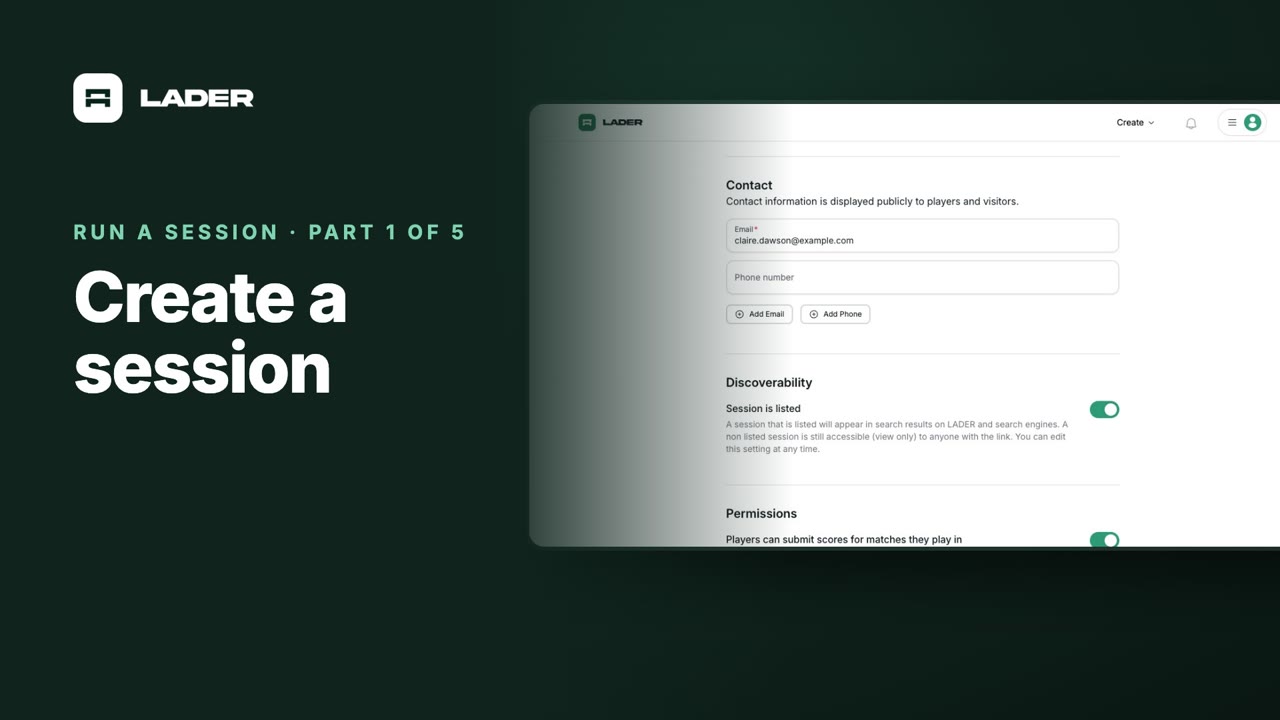
Your email is already under Contact. You can add more emails or a phone number.
Session is listed puts your session in search results. Turn it off to share it by link only.
Leave Players can submit scores for matches they play in turned on, so players can enter their own scores. Then click Create Session.
Your session is ready, on the Session Details page your players see. To share it, copy the link from your browser's address bar.
Next, add your players. There's no sign-up for sessions: you add everyone yourself.
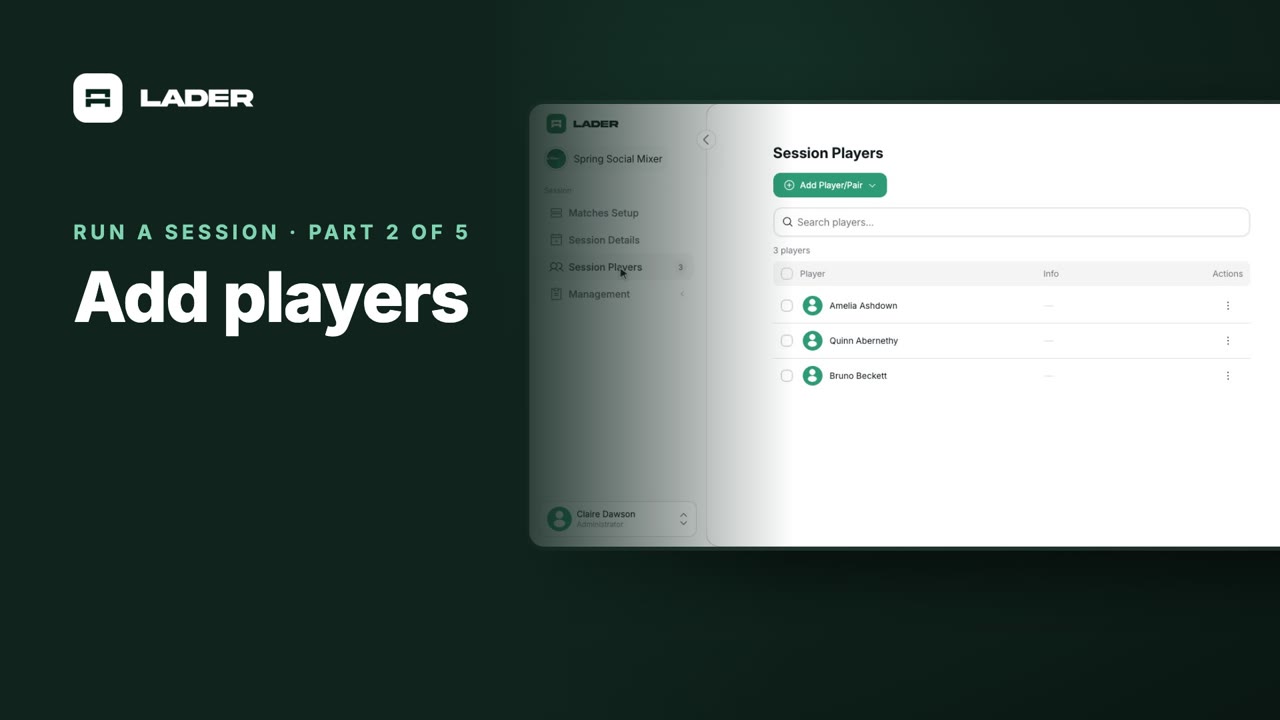
Open Session Players, click Add Player/Pair, and choose Player.
To add someone who's played with your club before, type their name or email, and pick them from the list.
Check Stay on page after submission to add more players, then click Add Player.
The form clears, ready for the next player.
For someone new, type their first and last name. Add their email, and LADER invites them to join. Only players who accept can enter their own scores.
Back on Session Players, everyone you've added is listed. Each player's Actions menu lets you replace or remove them.
For Random Matchups and Ladder, add everyone as a single player, not as a doubles pair. Those formats give people new partners every round.
Now choose the format. Random Matchups gives everyone a new partner and new opponents every rotation, and evens out playing time.
Here, sixteen players have been added.
Click Matches Setup. Under Who plays together, choose Rotating partners.
Then choose Random Matchups, and click Continue.
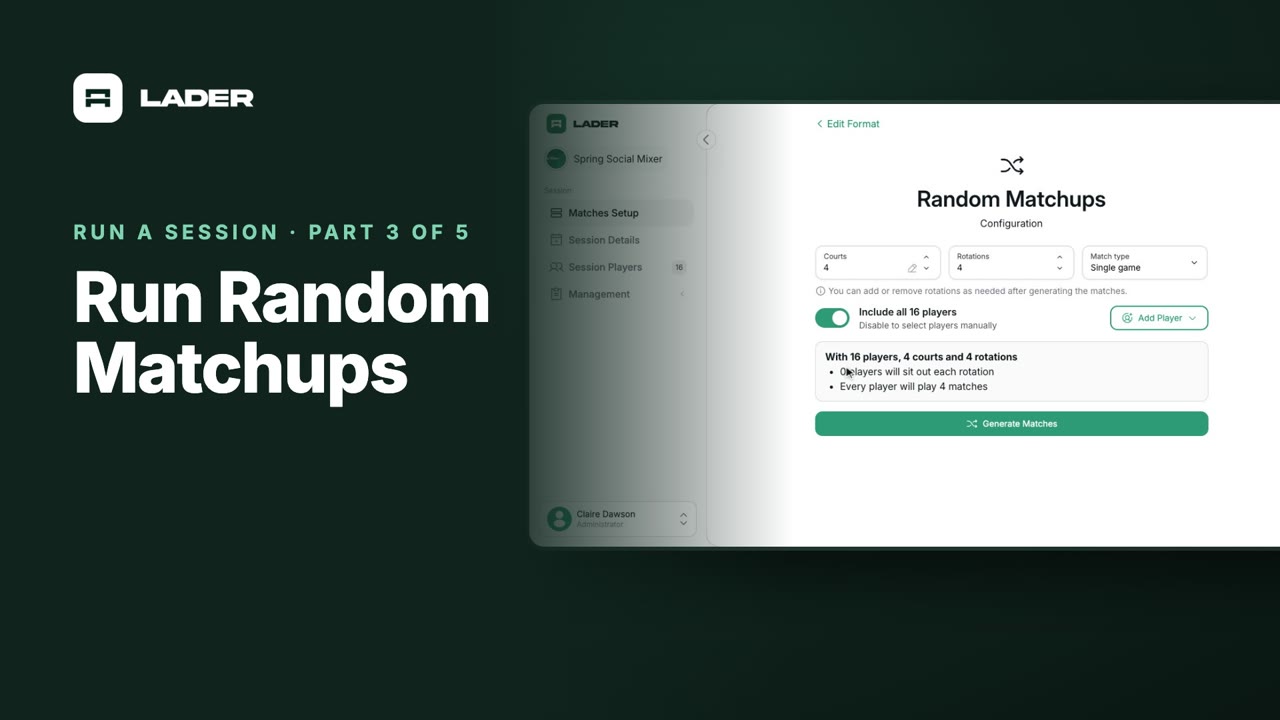
Set how many courts you have, how many rotations to play, and the match type. The pencil lets you rename the courts.
Include all sixteen players is on, so everyone in the session plays. Turn it off to choose who's playing.
The summary shows what you'll get. With sixteen players, four courts and four rotations, every player plays four matches.
Click Generate Matches. The matches are created in preview, so only your admins and moderators can see them.
Check the matches, then click Publish Matches.
Your players can see them now. Each card shows the match, its court and who's playing, with the standings beside them.
When the group wants to keep playing, click Add Rotation at the bottom. If someone arrives late, add them on Session Players first, and the new rotation includes them.
As games finish, enter the scores. Players can enter their own, and you can enter or correct any of them.
Click a match, type each side's score, and click Save Score.
The standings update straight away, for everyone who has the session open.
To find a match, filter by Player, Status or Rotation.
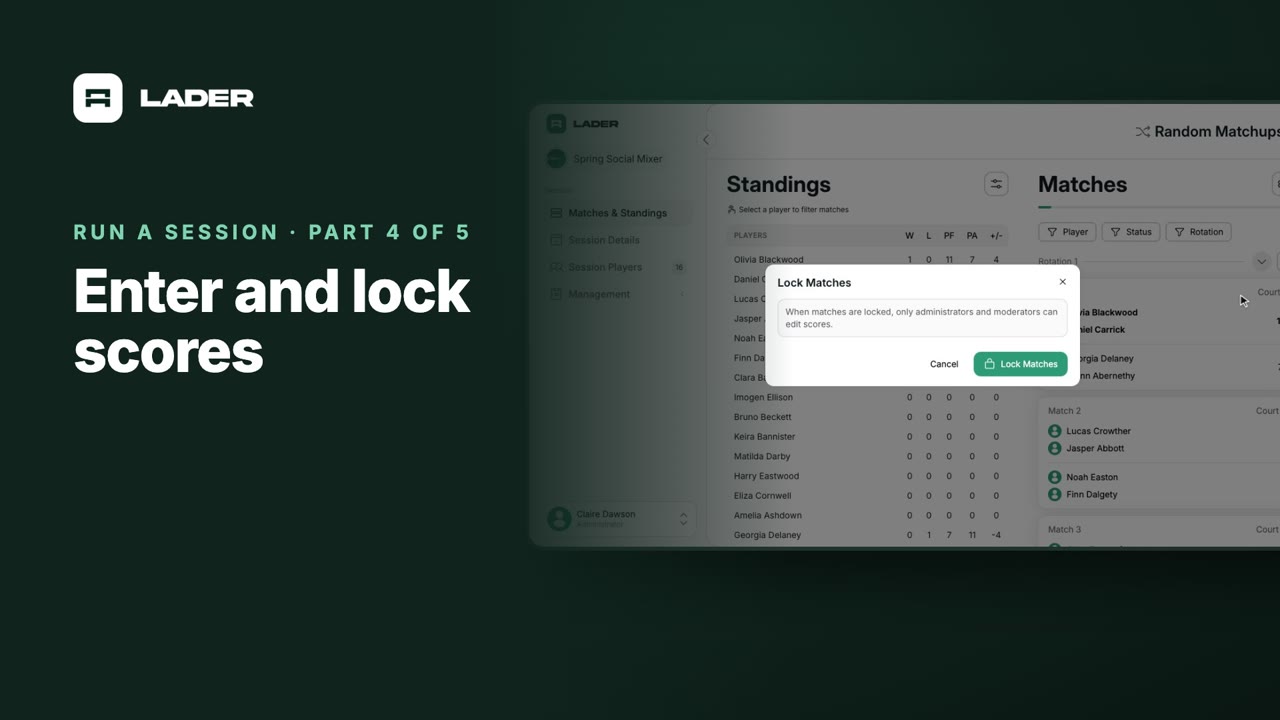
At the end of the night, lock the matches. Open the settings menu, choose Lock matches, and confirm.
When matches are locked, only administrators and moderators can edit scores. To reopen them, choose Unlock matches from the same menu.
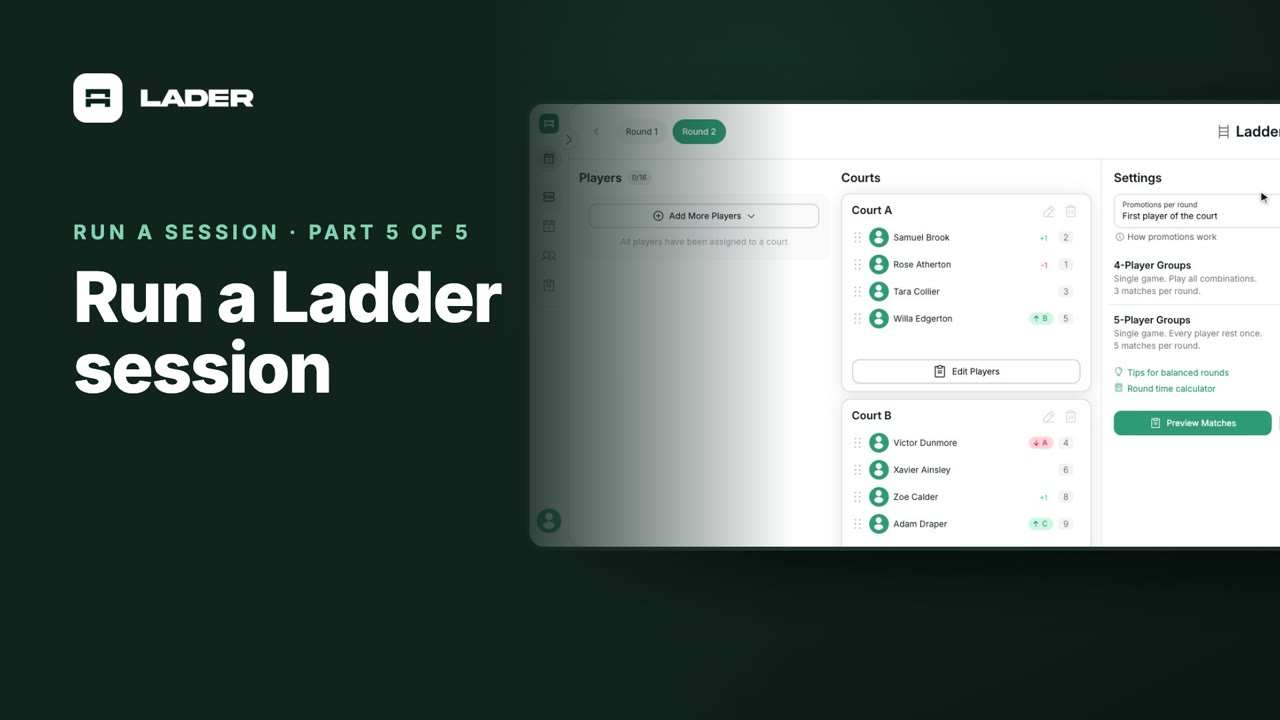
A Ladder plays up and down the courts. Each round, winners move up a court and losers move down.
This session already has its sixteen players.
In Matches Setup, choose Rotating partners, then Ladder, and click Continue.
Collapse the sidebar to give the board more room. Then click Add Court once for each court you're using.
You can drag players onto courts yourself, or place them automatically. To start everyone at their level, click Manage Seeds.
Seeds start from your players' DUPR ratings. You can switch to Alphabetical, or drag players to change the order. Then click Save Seeds.
Back on the board, open Auto-Placement, and choose Place Players by Seed. The top seeds start on Court A.
Promotions per round sets how many players move up from each court. How promotions work explains the rules.
Click Preview Matches. Every court needs at least four players. Check the round, then click Publish Matches.
As the scores come in, from your players or from you, the round fills up.
When every match has a score, Round complete appears. Click Add Round.
The next round's board shows who moved up and who moved down. If you drag anyone to adjust it, Reset Changes undoes your moves.
Then preview and publish the round as before. The round tabs at the top switch between rounds.
That's it: you've created a session, added players, run Random Matchups, entered and locked scores, and set up a Ladder. For step-by-step guides on everything we covered, visit the Help Center.
Still stuck?
Send us a message and we will walk you through it, or book a demo and we will show you live.
The clubs, events and people shown are fictional demo data. Narration uses an AI-generated voice.