
How to add LADER to your iPhone Home Screen
Install LADER from Safari so it opens full screen from its own icon, like an app.
Transcript
On tournament day you'll want LADER close at hand. Add it to your iPhone's Home Screen, and it opens full screen from its own icon, just like an app.
Open LADER in Safari and sign in. On your home page, tap Install App.
LADER shows you the three steps. Tap Got It, and follow them.
In Safari, tap the three dots at the bottom right, then tap Share.
Tap View More, then Add to Home Screen.
Check the name says LADER, leave Open as Web App switched on, and tap Add.
LADER is now on your Home Screen. Tap its icon to open it.
It opens full screen, without Safari around it. Sign in once, and you're ready for tournament day.
That's it for this video. Next up: finding your matches on tournament day.
Still stuck?
Questions about a tournament? Ask its organizer: their contact details are in the Contact section of the tournament page. For anything else, email us.
More for players
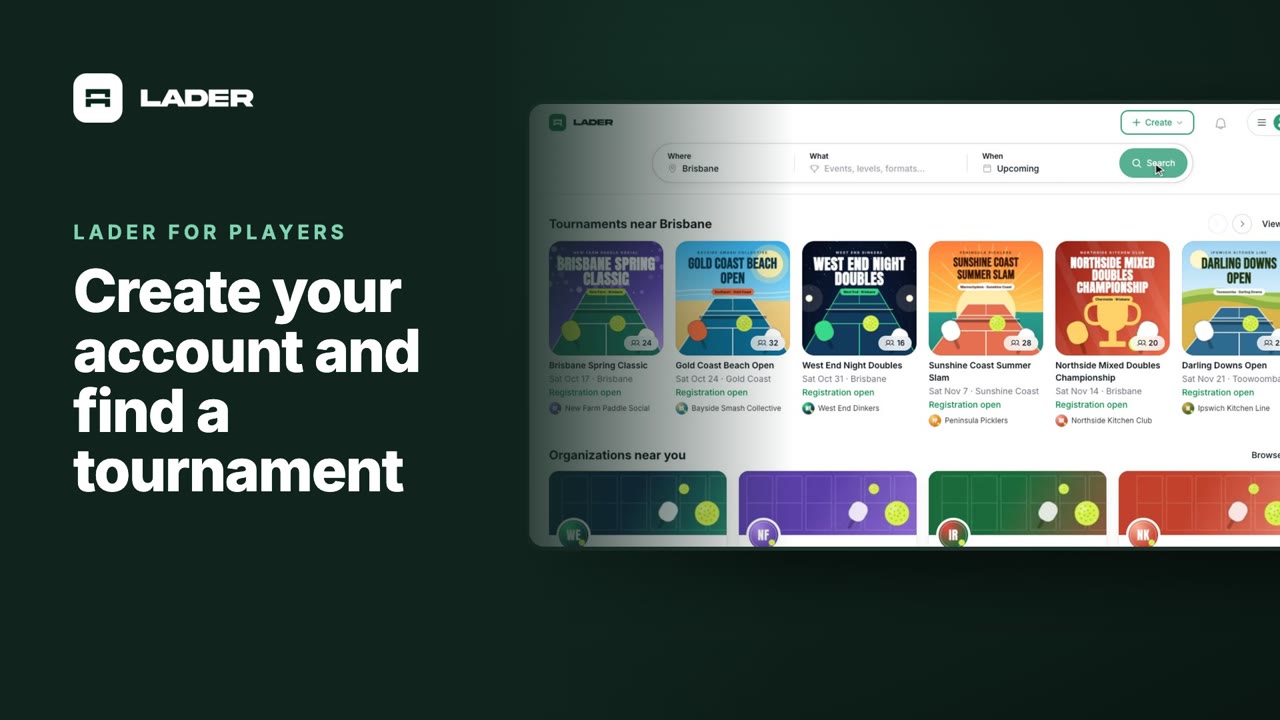
Video 1
Create your account and find a tournament
1:24
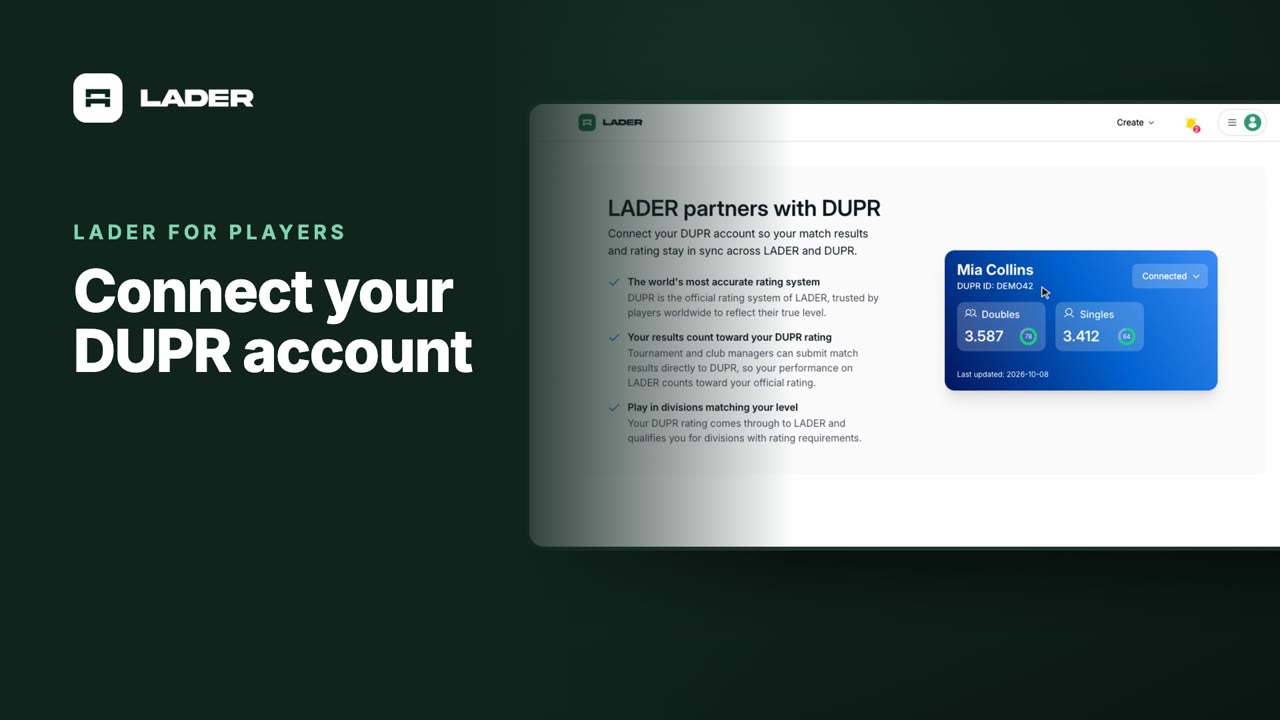
Video 2
Connect your DUPR account
0:58
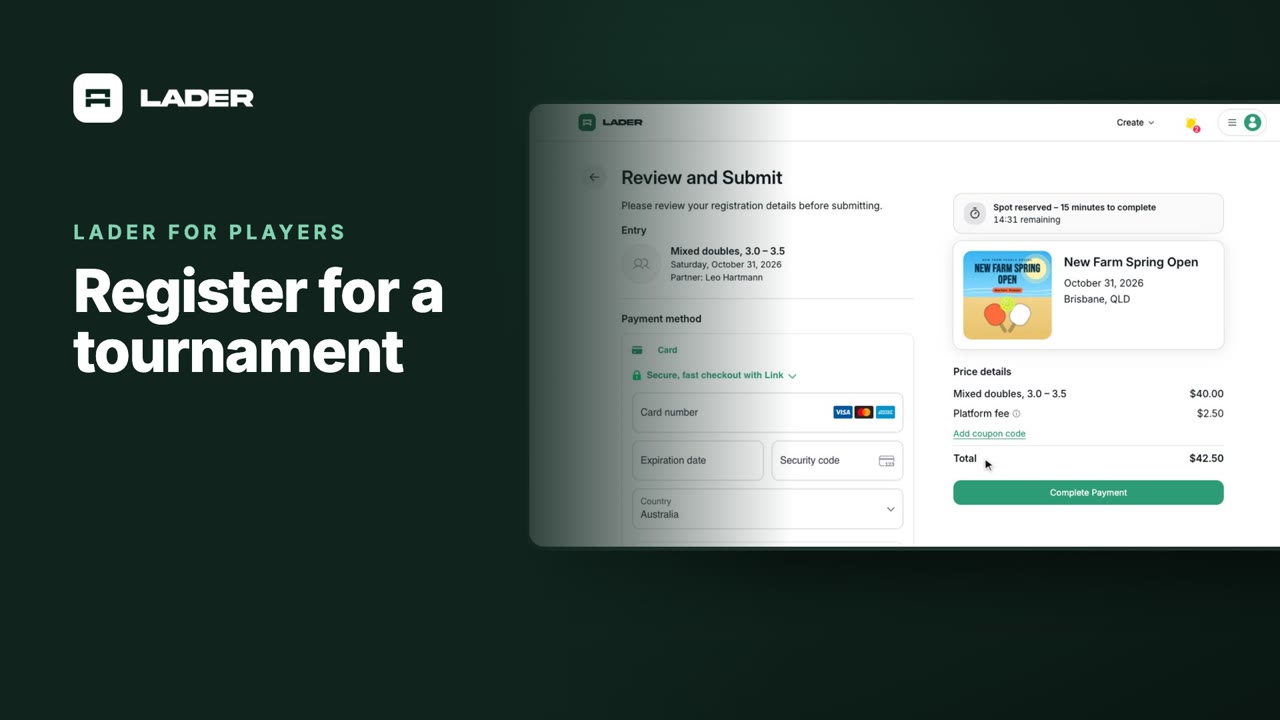
Video 3
Register for a tournament
1:36
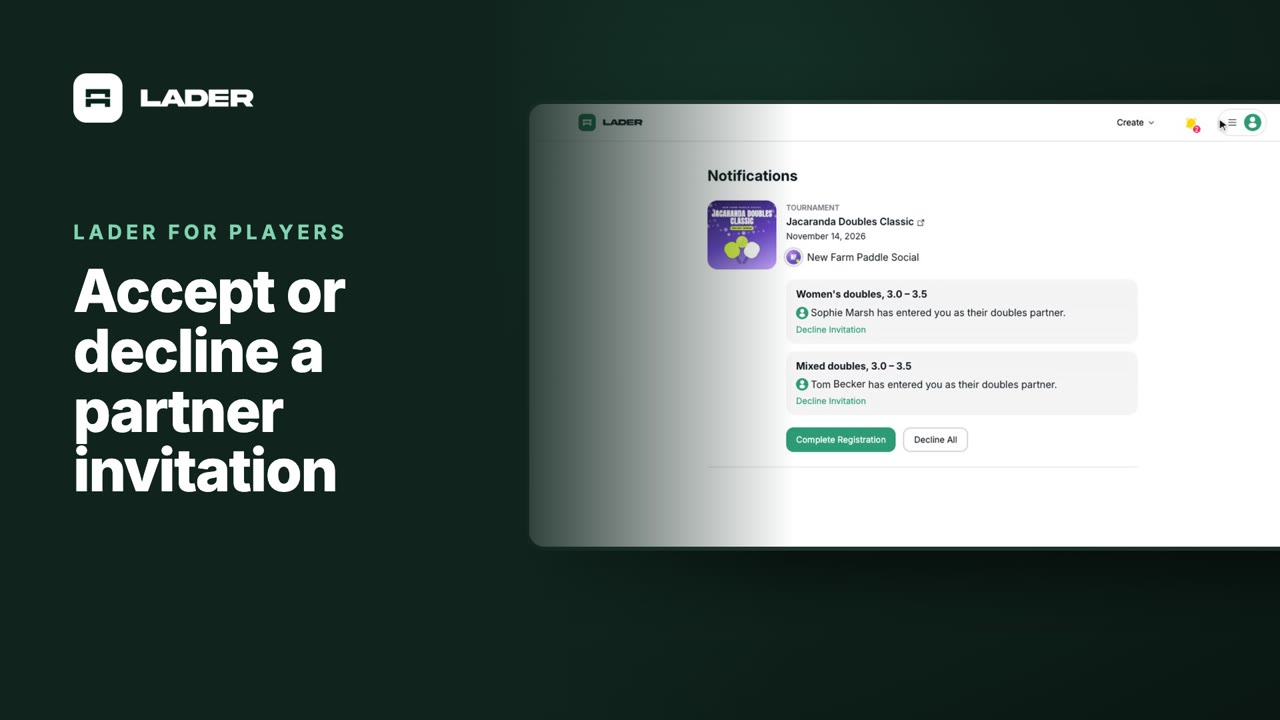
Video 4
Accept or decline a partner invitation
1:07
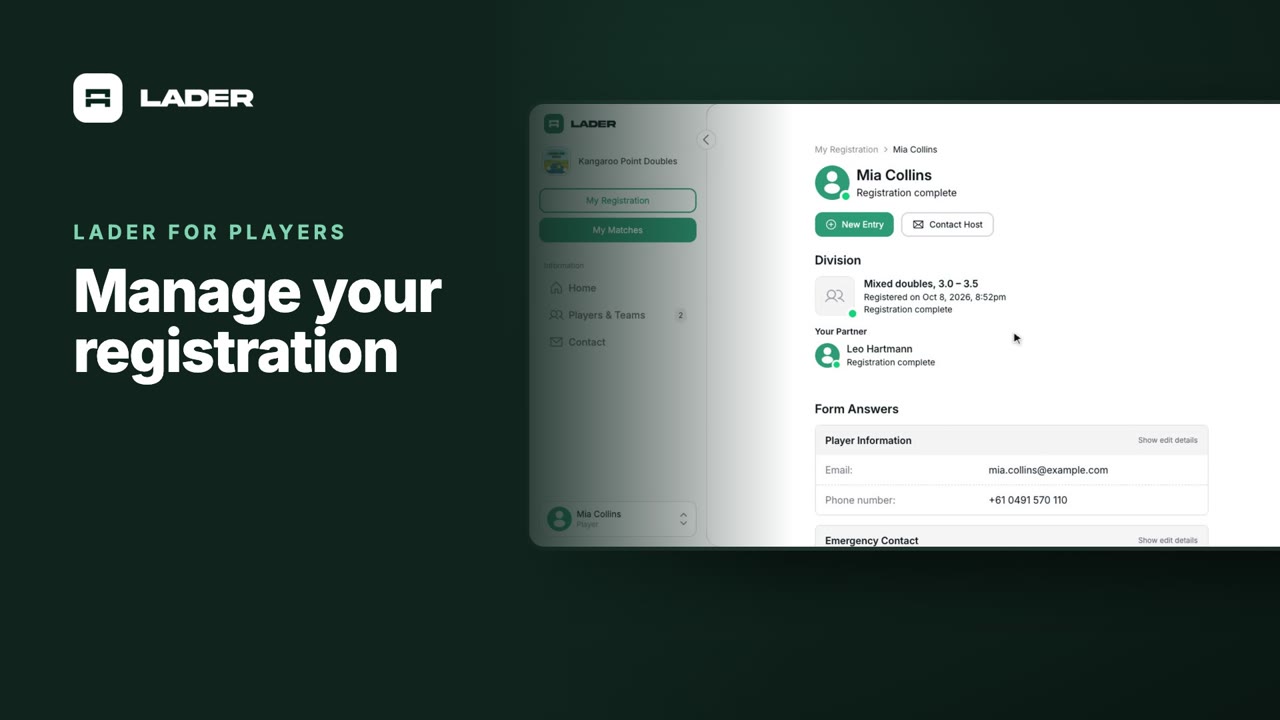
Video 5
Manage your registration
1:01
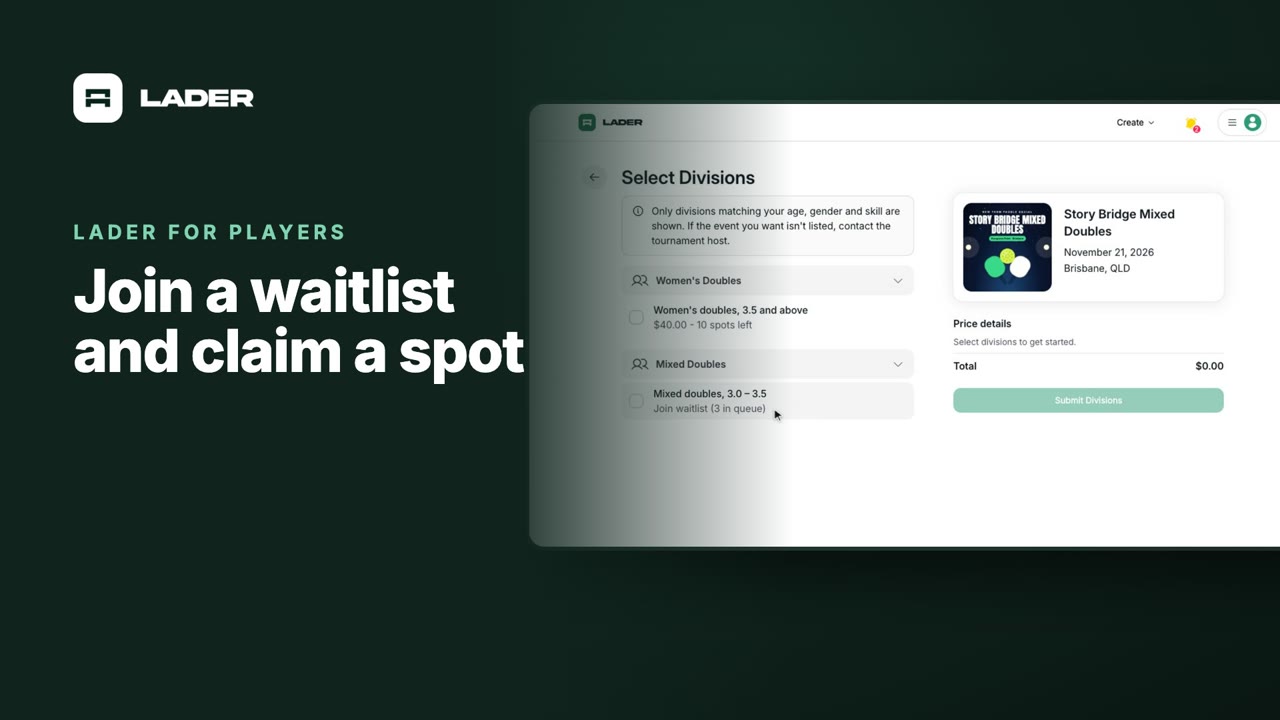
Video 6
Join a waitlist and claim a spot
1:31
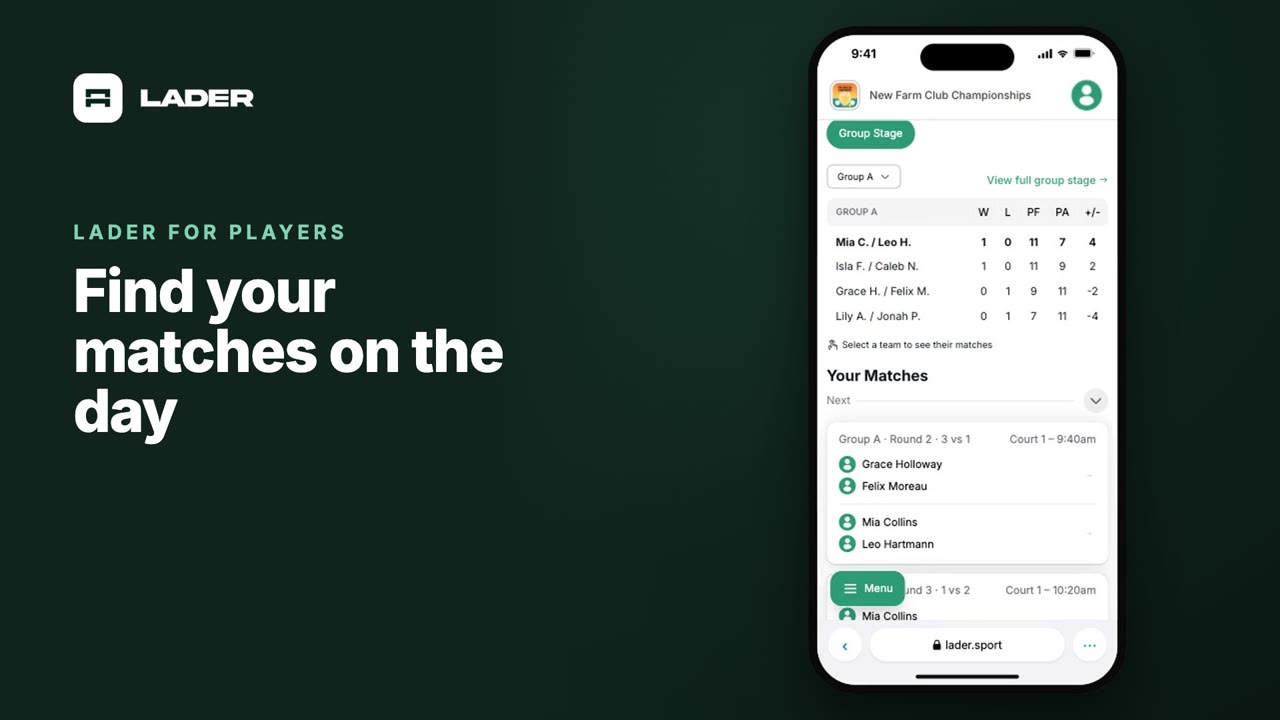
Video 8
Find your matches on the day
0:37
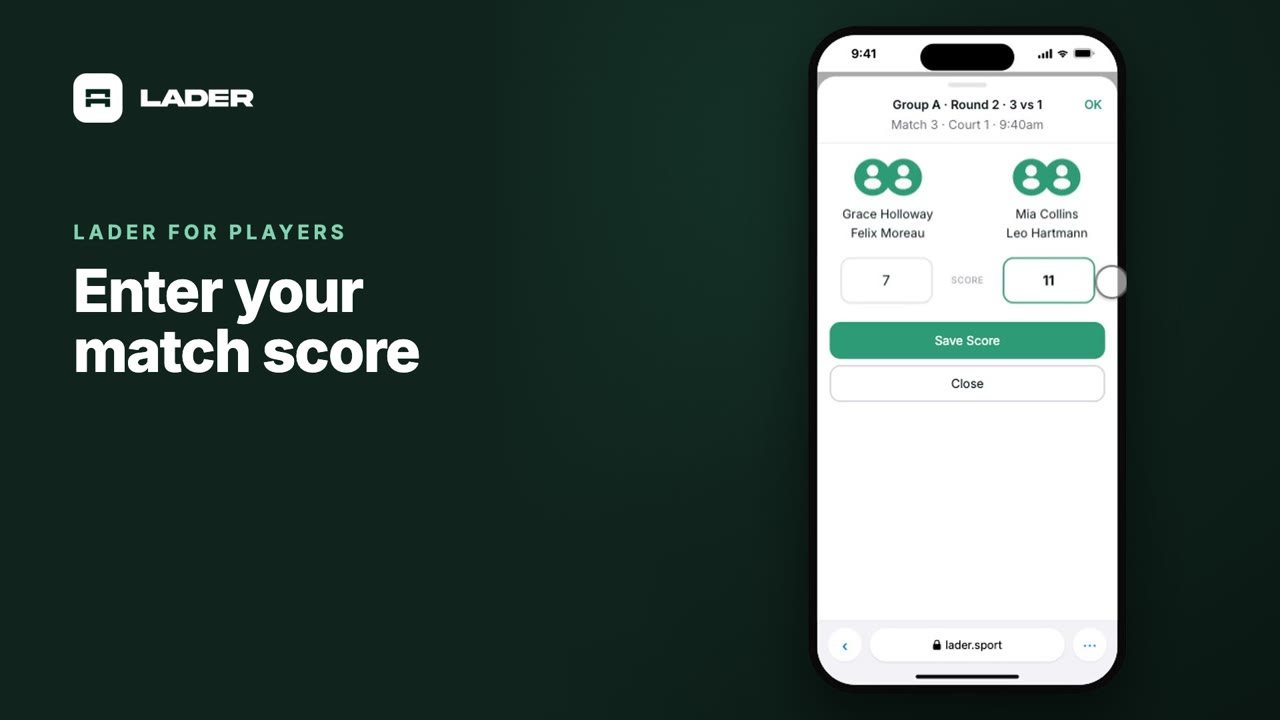
Video 9
Enter your match score
0:44
The clubs, events and people shown are fictional demo data. Narration uses an AI-generated voice.