
How to accept or decline a partner invitation on LADER
When a partner enters you in a division, accept from your notifications, complete your details and pay your share, or decline.
Prefer to read?
Transcript
When a partner enters you in a tournament, it's up to you to accept and complete your part, or to decline.
LADER emails you an invitation, and the bell at the top of the page lights up. Click it to see your invitations.
If you can't play, click Decline Invitation, and confirm. Declining can't be undone, so check with your partner first.
To accept, click Complete Registration.
Your entry is already set up with your partner. Click Continue.
Fill in your details and sign the waiver, just as you would when you register yourself, then click Continue. Next, you pay your share.
Enter your card number, expiration date and security code.
Then click Complete Payment. It takes a few seconds to go through.
And you're both in.
That's it for this video. Next up: managing your registration.
Still stuck?
Questions about a tournament? Ask its organizer: their contact details are in the Contact section of the tournament page. For anything else, email us.
More for players
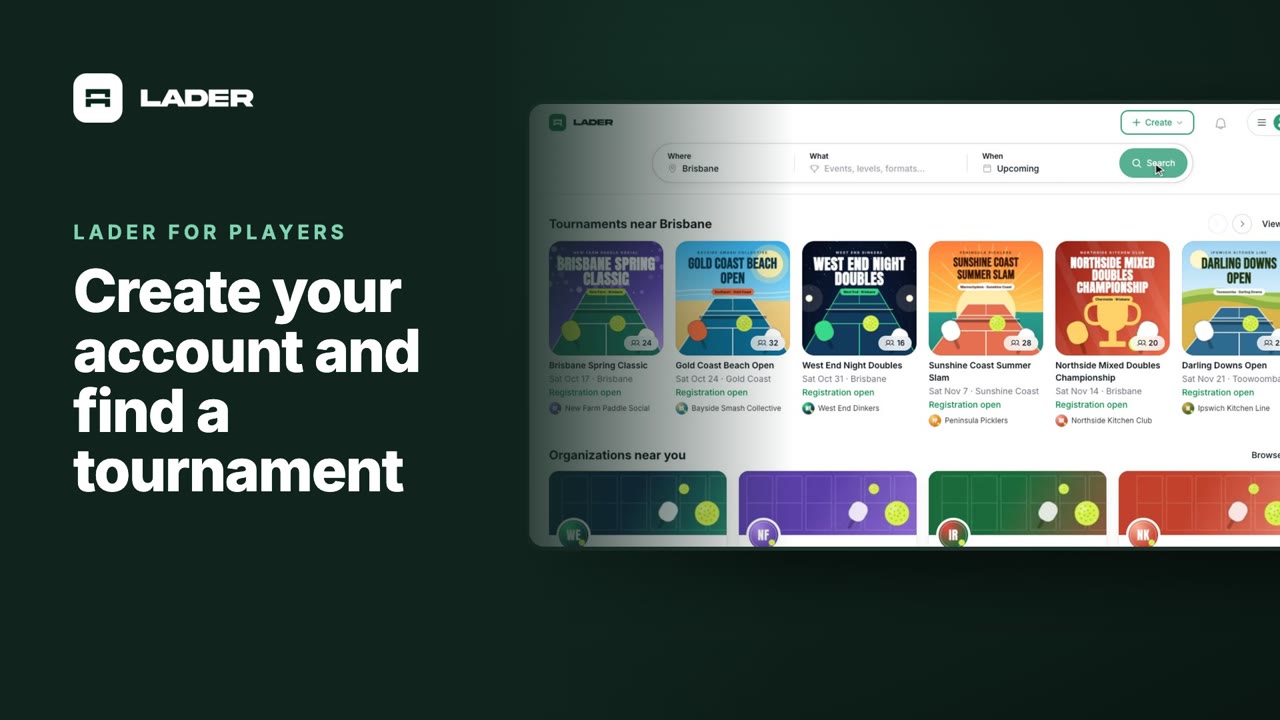
Video 1
Create your account and find a tournament
1:24
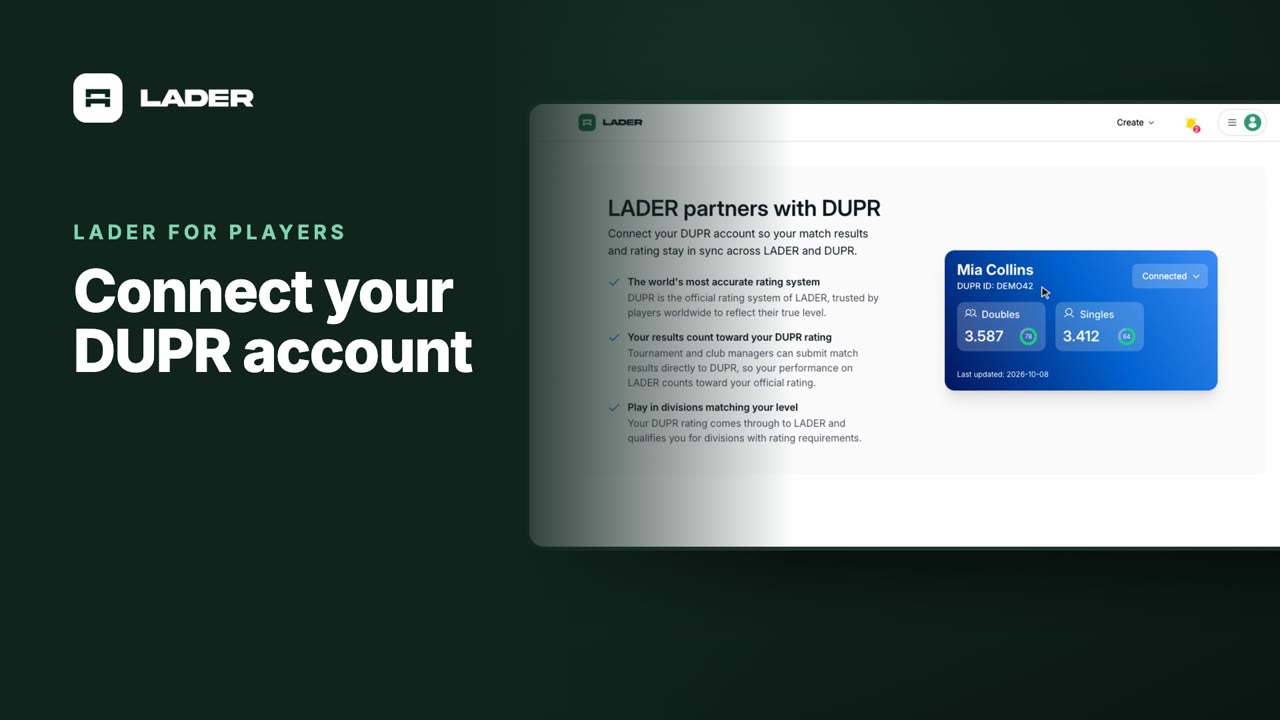
Video 2
Connect your DUPR account
0:58
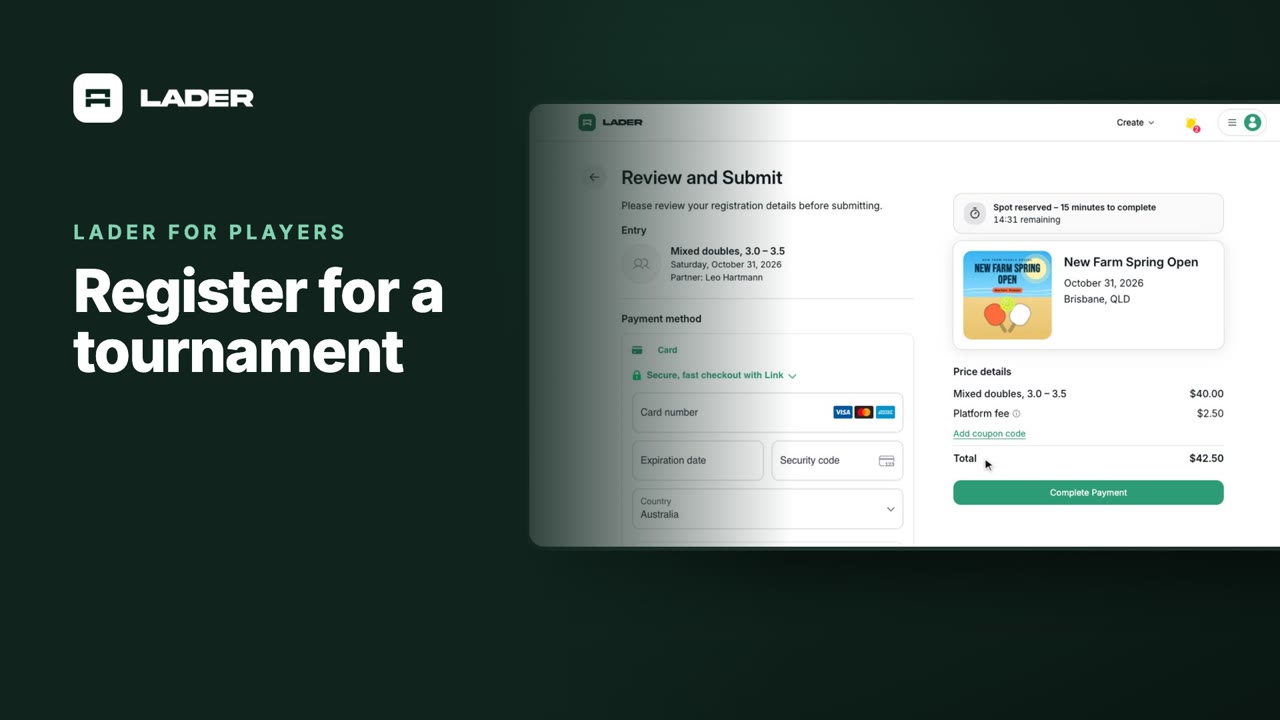
Video 3
Register for a tournament
1:36
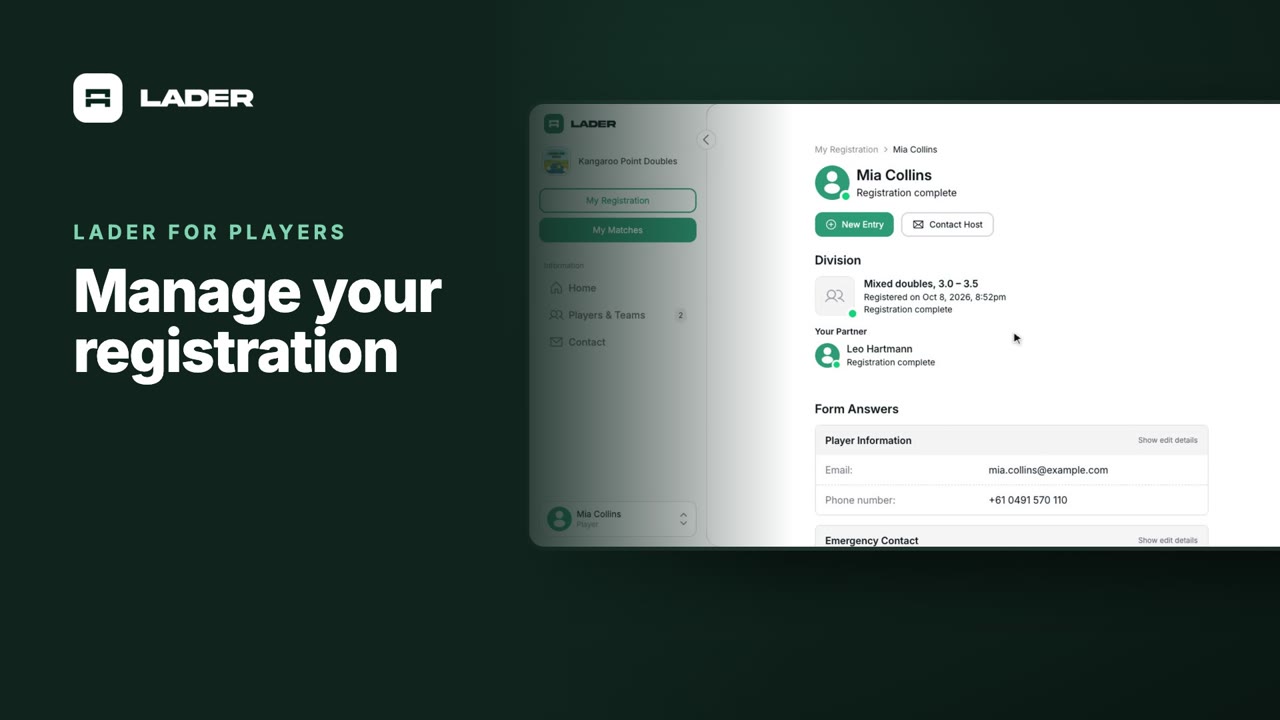
Video 5
Manage your registration
1:01
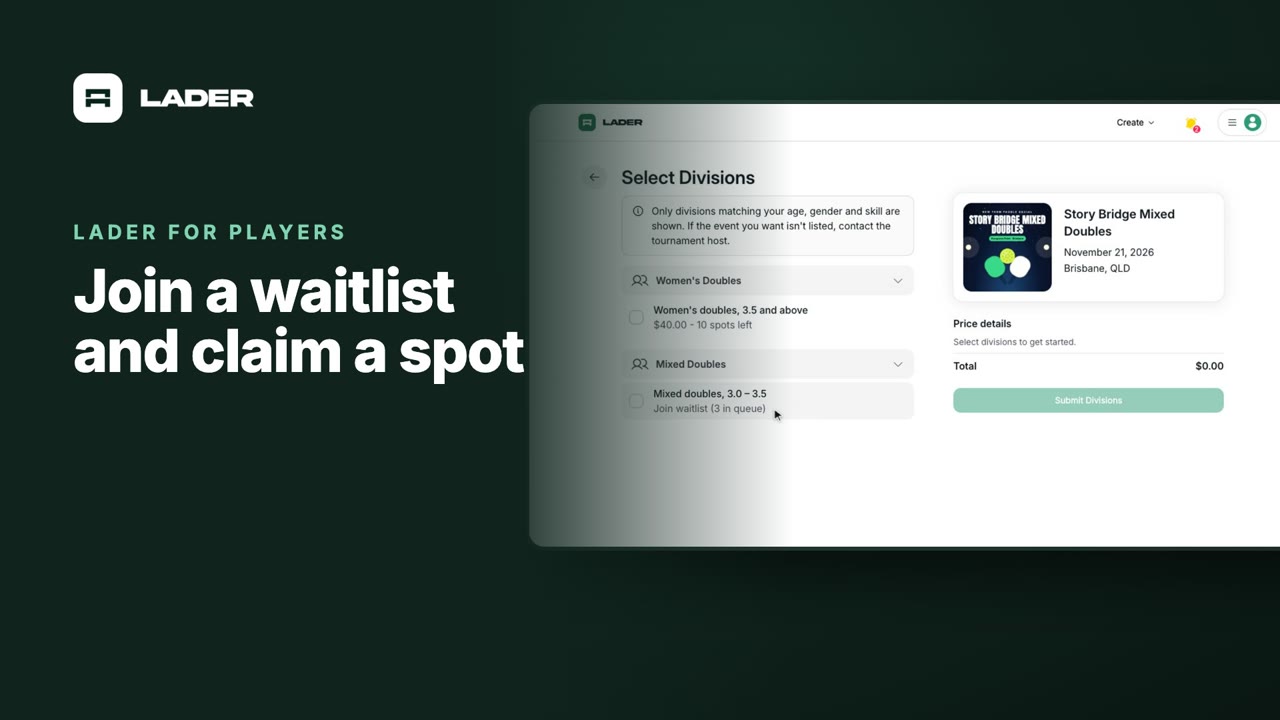
Video 6
Join a waitlist and claim a spot
1:31
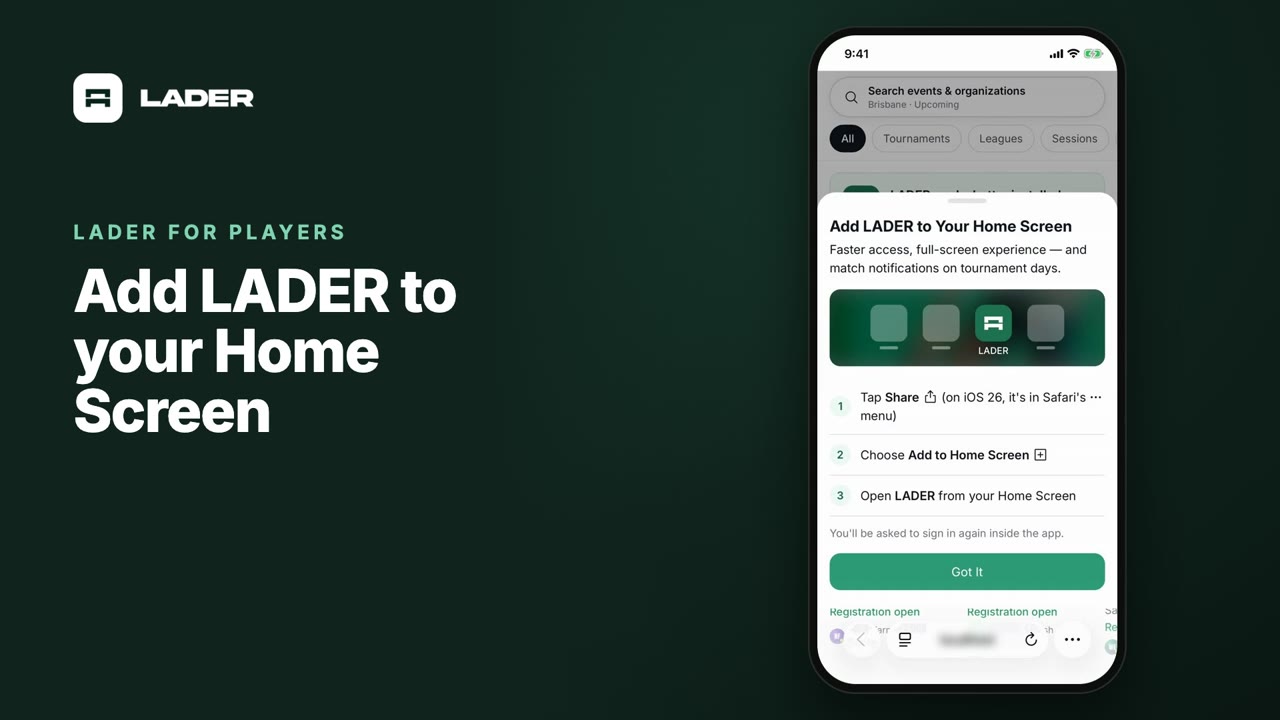
Video 7
Add LADER to your Home Screen
0:55
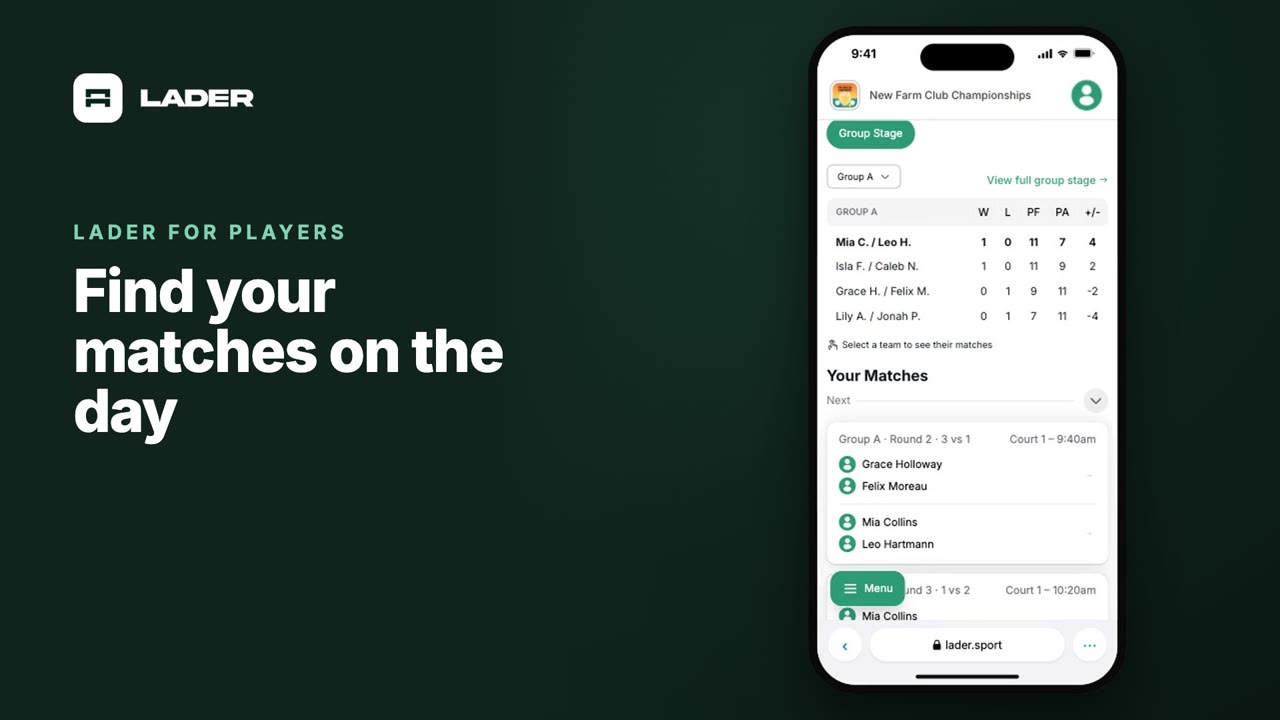
Video 8
Find your matches on the day
0:37
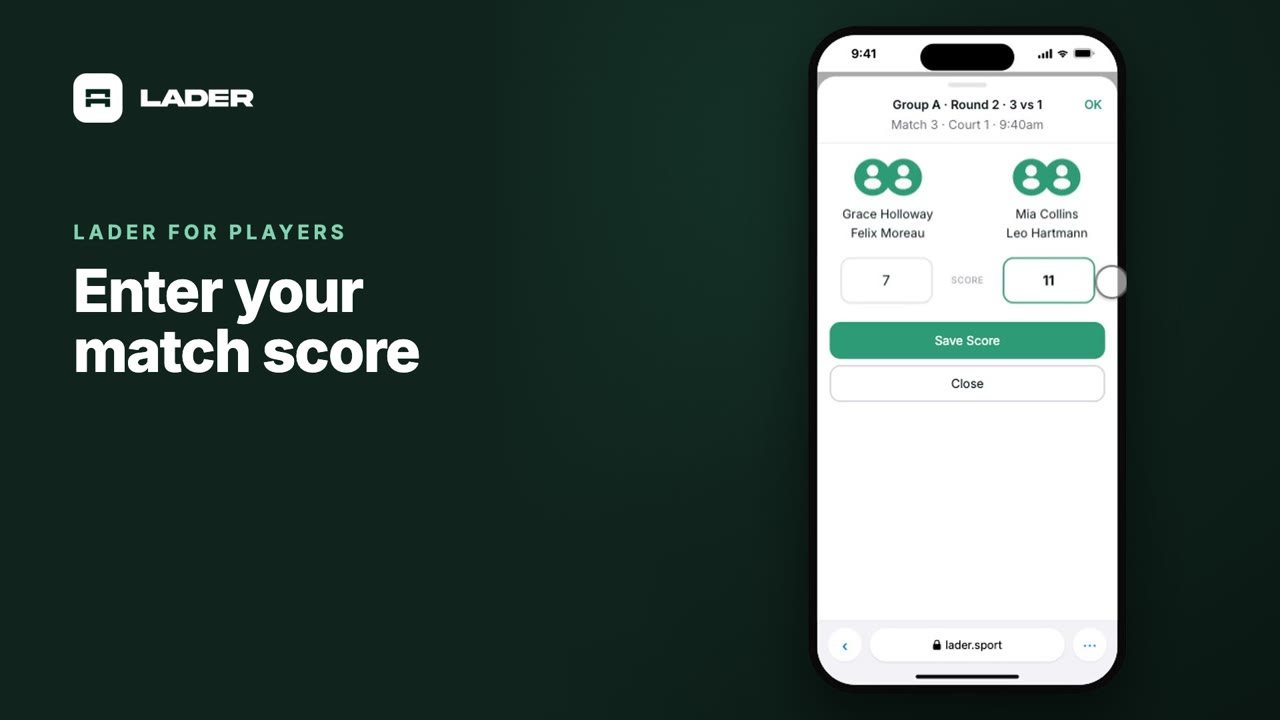
Video 9
Enter your match score
0:44
The clubs, events and people shown are fictional demo data. Narration uses an AI-generated voice.